Set up your workshop: the checklist
Work down this list once, before your first job. Most steps take a minute or two, about half an hour all up. One step, card payments, needs a few business days to be approved, so start it early.
The setup screens you see after signing up cover sections 1 to 3. The rest, and anything you skipped, is on the Finish setting up list on your dashboard, which ticks each step off as it’s done.
Until it’s done, the list also pops up for owners and admins the first time they open MechOS each day. Later puts it away until tomorrow.
Leaving the last few for later? Click Close on the list, or Don’t show this again on the pop-up. It comes off your dashboard, stops popping up, and waits in your account menu (bottom left, or More on a phone) until everything is done. A step that doesn’t apply to you can be marked Not for us instead.
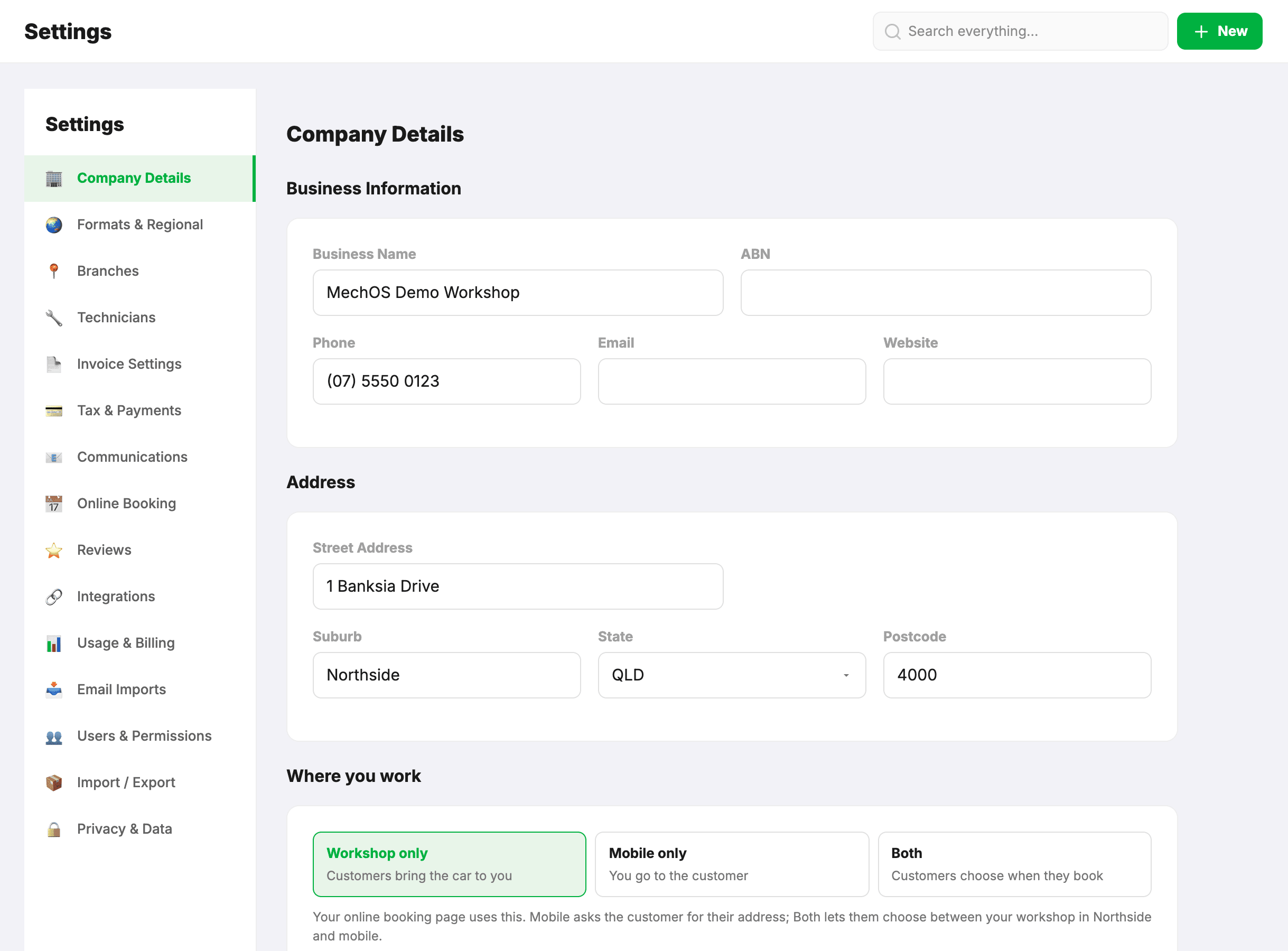
1. Your business details and your state
- The first setup screen asks for your business name, ABN, phone, email, address and state. Choose the state carefully: it sets your workshop’s clock. Reminder send times, due dates and booking times all run on it, so a Perth workshop’s 9am reminders go at 9am Perth time. Your state’s public holidays for this year and next are loaded onto the booking calendar too.
- Add your logo on the same screen, or later in Settings → Company Details → Logo. It goes on your invoices, estimates and emails.
- To check them later: the Timezone and the public holidays are in Settings → Formats & Regional.
2. Invoices and getting paid
- Invoice numbers. Moving from another system? On the second setup screen, choose Carry on from my old system and type your last invoice number, so numbers never repeat. Later, it’s Settings → Invoice Settings → Invoice Numbering, where estimate numbers are set too.
- GST and bank details are on the same screen. Later, they’re in Settings → Tax & Payments, along with the Payment Methods you accept. Bank details show on invoices unless you turn off Show bank details on invoices (Invoice Settings).
- Payment terms. Invoices are due on receipt. A fleet or trade customer on account can have their own terms: open the customer and choose Payment Terms (7, 14 or 30 days).
3. Your team
- Add each technician on the third setup screen, or in Settings → Technicians (+ Add Technician), where you can also add their phone, licences and pay.
- Invite everyone who needs a login from Settings → Users & Permissions and choose their role. Service advisors run the front desk: bookings, invoices and approving online booking requests. Technicians see only their own jobs. See Invite your team and assign roles.
4. Texting customers
- To send booking confirmations, reminders and “your car is ready” texts, turn on Use MechOS SMS for texts in Settings → Integrations. Texts show as coming from “MechOS” and are charged per text on your monthly bill. Texts sent during your free trial aren’t charged.
- Already use Podium? Connect it instead, and your texts go through Podium: see Connect Podium for SMS.
5. Card payments (start this early)
- As the owner, open Settings → Tax & Payments → Payment Gateway.
- Click Open VenueSmart form and fill it in: your business and the bank account your payments go to.
- Back in MechOS, click I’ve submitted the form — finish setup.
- VenueSmart reviews it, usually within a few business days, and MechOS emails you once you’re approved. Then switch on Show Pay Now in invoice + customer portal in the same place, so customers can pay by card.
Taking payments on a terminal as well? See Set up EFTPOS terminal payments.
6. Xero, if you use it
In Settings → Integrations, click Connect to Xero, turn on Push finalised invoices to Xero and choose your accounts. Nothing is sent until you click Send to Xero on an invoice. Send one invoice first and check it in Xero before you rely on it. Full steps: Connect Xero to sync invoices and payments.
7. Reminders and messages
- Nothing goes to your customers by itself until you switch it on. Service reminders, follow-up reminders and review requests each start off. Messages you send yourself, like emailing an invoice, work straight away.
- To send service reminders, check the wording, the default interval and whether they go by email or text in Settings → Communications → Service Reminders, then switch on Enable service reminders. From then on, when you finish a job, tick 🔔 Service reminder on the invoice and MechOS contacts the customer when the next service is due. See Set up service and follow-up reminders.
- The wording of your invoice and estimate emails is in Settings → Communications too.
- Google review requests are off until you set them up: see Ask customers for a Google review.
8. Optional extras
- Let customers book from your website: Take booking requests from your website.
- Rego Lookup fills in a car’s make and model from its rego. Turn it on in Settings → Integrations. It’s charged per lookup on your monthly bill.
- Each car can have its own service record page, with its history and next service. It’s under Service record on a booking or on a client’s car, and nothing is public until you make a car’s link or link a sticker to it.
- To put a QR code on your service stickers, make a batch of codes in Settings → Communications → Service Record Page and send the file to your sticker printer. Each sticker gets its own code; at the service, link it to the car with Service record → Link sticker. See Service record pages and QR stickers.
- Protect your login with a second step: Two-factor authentication.
9. Subscribe
Your free trial lasts 14 days. When you’re ready, the owner opens Settings → Usage & Billing and clicks Subscribe. Your first paid month starts that day, so it’s best done near the end of your trial.