Account & billing
Two-factor authentication
3 min read
Two-factor authentication (2FA) means a password alone isn’t enough to get into your workshop’s data. Worth turning on: your MechOS account holds every customer’s name, address, phone number and vehicle history.
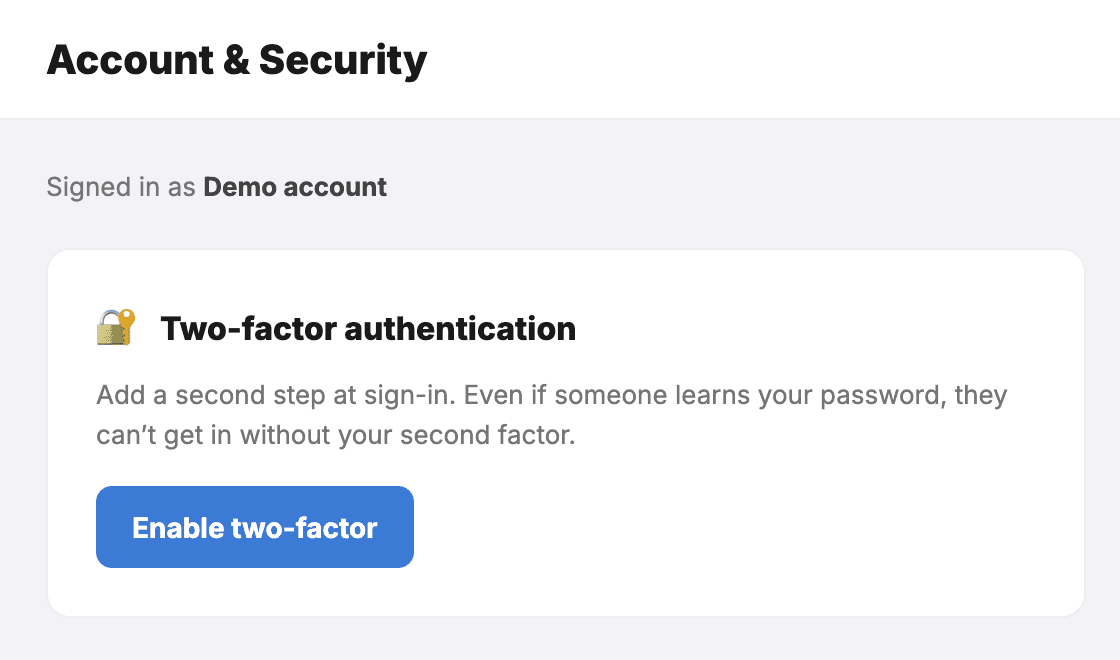
Turn it on for yourself
- Go to Account & security.
- Click Enable two-factor (or Use an authenticator app, if you’re given a choice) — Google Authenticator, 1Password, Authy, whichever you use.
- Scan the QR code with the app.
- Type the six-digit code back in to confirm. If you don’t confirm, it isn’t on.
From then on, signing in asks for a code after your password. Codes change every 30 seconds and work with no phone signal.
If someone is locked out
An admin can reset a user’s 2FA from Settings → Users & Permissions — edit the user and choose Reset 2FA. They can then set it up again from Account & security on their next sign-in.
- Only admins and owners can reset it.
- Resetting is logged in the audit trail.
Tip:Make sure at least two people have admin, both with 2FA working. One admin plus one lost phone is a bad afternoon.
Still stuck? We’d rather help than have you guess.
Email us →