Account & billing
Connect Xero to sync invoices and payments
3 min read
Connect your Xero organisation and push finalised invoices, customers, and payments straight into Xero — so your bookkeeper isn't re-keying anything. It's one-way (MechOS → Xero), opt-in, and manual: nothing leaves MechOS until you turn sync on and click Send to Xero on an invoice.
Before you start
- A Xero account with the organisation you want to sync to.
- You're an owner or admin in MechOS (only they can connect Xero).
- Know which accounts your income and payments should post to — ask your accountant if you're unsure. You can change these later.
Connect to Xero
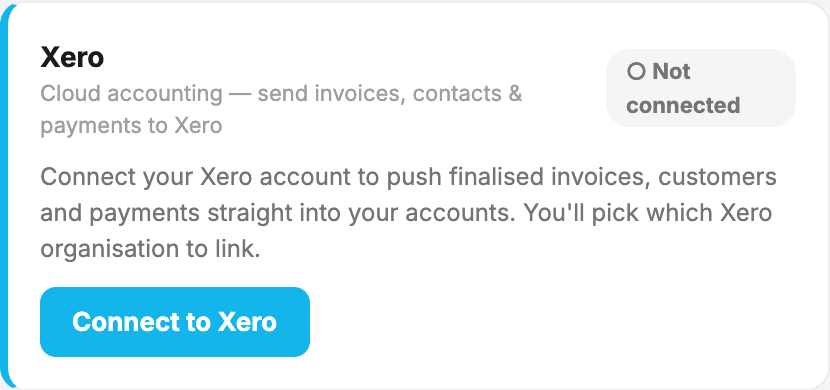
- Open Settings → Integrations and find the Xero card (under Accounting).
- Click Connect to Xero, then Connect to Xero again on the next screen. You'll be taken to Xero to log in.
- Choose the Xero organisation to connect and click Allow access.
- You're returned to MechOS and the card now shows Connected with your Xero organisation's name.
Turn on invoice sync and map your accounts
Connecting alone doesn't send anything. To start pushing, tick Push finalised invoices to Xero — it's off by default. That reveals the account mapping, which pulls the live chart of accounts from your Xero organisation:
- Sales account — where invoice income posts (e.g. 200 Sales).
- Labour account — optional. Leave it blank to post labour to the same account as parts ("Same as sales"), or pick a separate account if your accountant wants labour split out.
- Bank account (payments) — where payments post. Leave it blank and payments won't sync (invoices only).
- GST tax rate — the Xero tax rate for GST on income (usually GST on Income).
Click Save sync settings when you're done.
Send an invoice to Xero
- Open a finished invoice and click Preview.
- Click Send to Xero at the top of the preview.
- MechOS creates the customer in Xero if it isn't there yet, creates the invoice (as Authorised), and pushes any payments you've recorded against it.
- The button changes to ✓ In Xero so you can see at a glance what's already synced.
What syncs — and what doesn't
- One-way only. MechOS pushes to Xero; changes you make in Xero are not read back.
- Customers are matched to an existing Xero contact by name, or created if there isn't one.
- Payments push only if you've mapped a bank account.
- No duplicates. Clicking Send to Xero again on an already-synced invoice won't create a second copy.
- Supplier bills / parts purchases don't sync yet — only the sales side (invoices and payments).
Reconnect, switch org, or disconnect
- Reconnect / Switch org — re-authorise Xero.
- Disconnect — stops syncing. You can reconnect any time, and anything already pushed stays in Xero.
Heads up:Nothing is ever sent automatically. An invoice only reaches Xero when both the Push finalised invoices toggle is on andyou click Send to Xero on that invoice. It's perfectly fine to connect Xero and never push — leave the toggle off.
Tip:Invoices land in Xero GST-inclusive, with the same totals to the cent. If your workshop isn't GST-registered, set the GST tax rate mapping to a no-GST rate.
Still stuck? We’d rather help than have you guess.
Email us →