Getting started
Getting started with MechOS
4 min read
MechOS is designed to be usable five minutes after you sign up. There’s no training day, no certification, no setup engineer to call. Here’s what to do once you’ve clicked “Start free trial”.
Sign up
- Go to the homepage and click Start your 14-day free trial.
- Enter your email, set a password (10+ characters), give your workshop a name.
- You’re signed straight in and taken to the setup screens. That’s it for the account.
The setup screens
Your first login takes you through four short screens. Each one saves when you press Continue, and after the first you can skip any of them:
- Your business: name, ABN, phone, email, address, state and logo. These go on every invoice, email and PDF you send.
- Invoices and getting paid: where your invoice numbers start, GST, and the bank details customers pay into.
- Your team: your technicians, and invites for the staff who’ll log in.
- Your customers: import your list from your old system, or start fresh.
Choose your state carefully. It sets your workshop’s clock, so reminders, due dates and booking times run on your local time, and it loads your state’s public holidays onto the calendar.
Tip:Everything on the setup screens can be changed later in Settings. Anything you skip, and the steps that come after, such as card payments and texts, are on the Finish setting up list on your dashboard. See Set up your workshop: the checklist.
Finding your way around
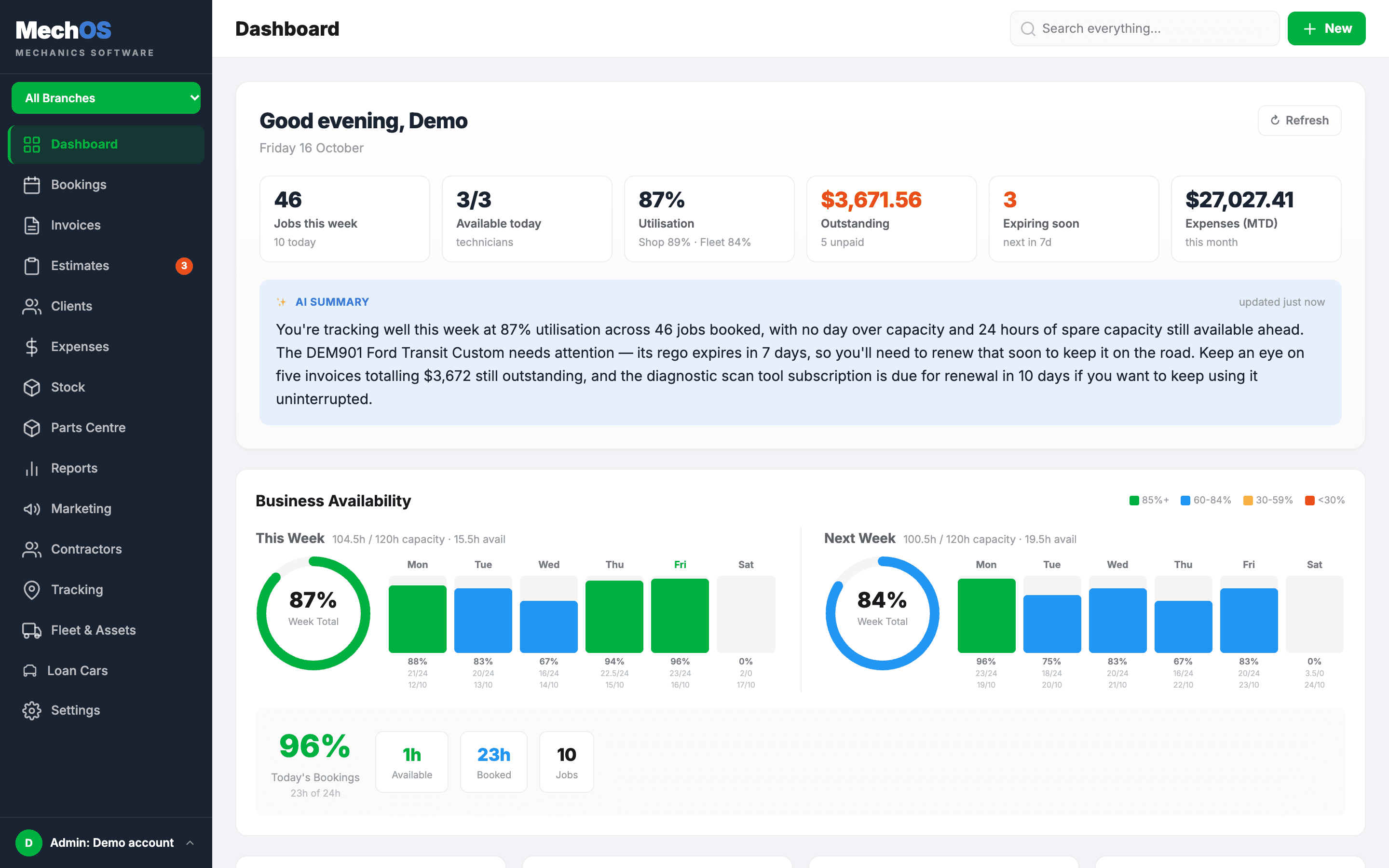
The left sidebar is the main navigation. Top to bottom:
- Dashboard — today’s bookings, jobs in progress, anything overdue.
- Bookings — drag-and-drop calendar for the whole shop.
- Invoices & Estimates — your billing documents.
- Clients — customer list, vehicle history, statements.
- Expenses — supplier invoices, contractor bills.
- Stock — parts catalogue, purchase orders and stocktakes.
- Parts Centre — jobs parked while they wait on special-order parts.
- Reports — parts vs labour, productivity, GST and BAS figures.
- Marketing — customer lists, and SMS and email campaigns.
- Contractors — subcontract techs, what they earned, what to pay them.
- Tracking — where your mobile techs are right now.
- Fleet & Assets — your own vans and workshop equipment, and their expiry dates.
- Loan Cars — the courtesy fleet: who has what, and when it’s due back. It appears once you switch it on in Settings → Integrations.
- Settings — everything else.
Technicians see only My Jobs: their own jobs, their timer, photos and checklists.
Next steps
The things to do next, in order:
- Work through Set up your workshop: the checklist. It takes about half an hour.
- Invite your team so they can log in too: see Invite your team and assign roles.
- Import your existing client list, or just add the first few by hand if you’re starting fresh.
Still stuck? We’d rather help than have you guess.
Email us →