Service record pages and QR stickers
Every car can have its own service record page: a page with your workshop’s name on it that shows the car’s finished jobs, when the next service is due, and a button to book it. The customer opens it by scanning a QR sticker on the windscreen, or from a link you send them.
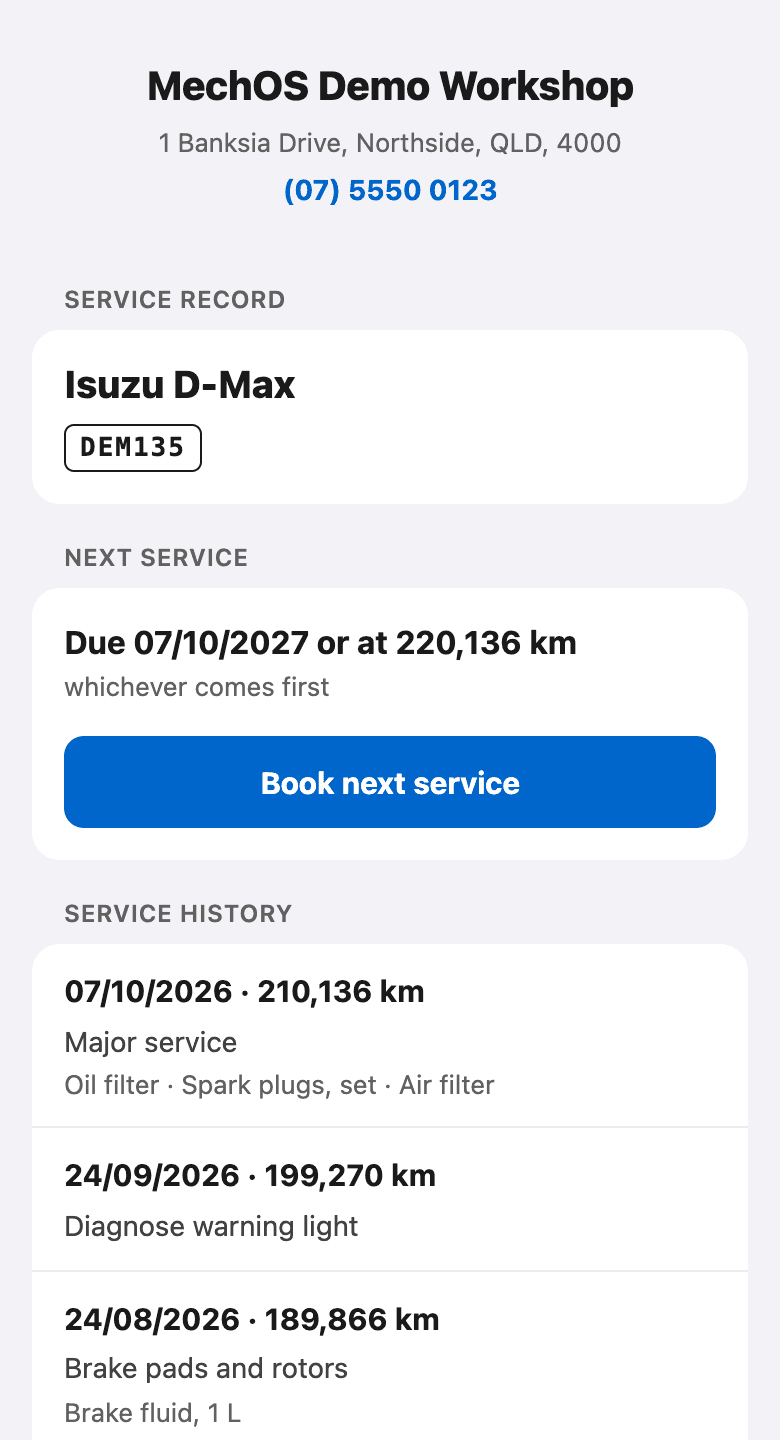
What the customer sees
- Your workshop’s name, address and phone.
- The car: make and model, and the rego unless you switch that off.
- Next service: the date and kilometres from the car’s service reminder, “whichever comes first”, with a Due now tag once it has passed.
- Book next service, which opens your booking page with the car already filled in. If online booking is off, the button reads Call to book and rings you instead.
- Service history: every finished job (complete or paid, never void), newest first, with the date, the odometer reading and a one-line summary of the work. The parts are listed under it, and Details shows the full wording. The newest 25 visits are listed.
It never shows prices, totals, the customer’s name or details, or photos. Consumables, levies and surcharges are left out of the history.
Make a car’s page
- Open Service record on the car, from a booking or from the car in the client’s record.
- Press Make link.
- Send the customer the link with Copy link, or press QR code and let them scan it from your screen at the counter.
The panel shows how many finished jobs the page lists and how many times it has been opened. Opening it yourself with Open isn’t counted. Owners, admins, service advisors and contractors can make and change links; technicians can’t.
Jobs from a previous owner
If some of a car’s earlier jobs were billed to someone other than its owner, the panel says so (“3 jobs before 12/02/2025 were billed to someone other than the owner — a previous owner?”) and offers Show only jobs from that date. The page then starts there. Show all puts the earlier jobs back; they show only dates, kilometres and the work done, never prices or names.
When you transfer a car to a new owner from the client’s record, its history starts from that day and the old link stops working, so the previous owner’s sticker or link no longer opens it.
QR stickers
Each sticker has its own QR code and a 10-character code printed under it. A sticker shows nothing until it’s linked to a car.
- Go to Settings → Communications → Service Record Page, and under Stickers choose how many codes you want (up to 5,000 in a batch). Press Make codes. Owners and admins only.
- Then either Download the file for a sticker printing company — each row is one sticker, with the link for its QR code and the short code to print under it; printers may call this “variable data printing” — or press Print labels to print them yourself.
Print labels works on a label printer (one label per page, at the size you set) or on A4 label sheets in the office printer. Common sheet layouts are listed, or enter your own, and you can start at any position on a part-used sheet. If you pick a label too small for the QR code to scan reliably, it warns you.
Link a sticker to a car
- Open Service record on the car and press Link sticker.
- Press Scan the sticker’s QR code and point the phone’s camera at it, or type the code printed under the QR. Capitals, spaces and dashes don’t matter.
- Put it on the windscreen. Scanning it now opens the car’s record.
A car has one sticker at a time: linking a new one stops the old one. The QR sticker stays on the car from one service to the next. Change the service sticker as usual and leave the QR. Replace it only when the car changes hands, after a reset, or if it’s damaged.
A sticker scanned before it’s linked says “This sticker isn’t set up yet”, and one whose link has stopped says “This sticker is no longer active”. Both show your workshop’s details and a way to book, and nothing about any car.
Reset a link
Reset link, at the bottom of the panel, stops the current link and any sticker with it, and makes a new one. Use it if a link has gone to the wrong person. The car will need a new sticker afterwards.
The next service on the page
The page takes its next service from the car’s service reminder. Set one on the invoice, with its date and “or at ___ km”; the kilometres start at the job’s odometer reading plus your usual interval, set under Settings → Communications → Service Reminders → Default km interval (10,000 km unless you change it). With no reminder, the page offers Book a service instead of a due date. See Set up service and follow-up reminders.
A booking from the page arrives under Requests with the car suggested; you still confirm it. See Take booking requests from your website.
Turn it off, or hide the rego
Under Settings → Communications → Service Record Page, Service record pages switches every car’s page off at once; links already given out work again when you turn it back on. Show the rego on the page controls the rego. An archived car has no page.