Take booking requests from your website
Online booking gives your workshop a public page where a customer can ask for a job — pick a day, tell you what the car is doing, and send it through. It lands in a queue beside your calendar, and you decide what happens next.
They’re requests, not bookings
This is the part worth being clear on, because most systems you’ve seen do it the other way. A customer never books themselves into your diary. They send a request, and nothing exists in your workshop until you approve it — no client, no vehicle, no job on the calendar.
That’s deliberate, for three reasons:
- You decide what the job is. “Brakes feel funny” might be thirty minutes or it might be a morning. A customer booking that as a half-hour service is a Tuesday you can’t get back.
- Nothing a stranger types touches your customer list. A junk submission is one row in a queue you decline, not a client record and a booking you have to unpick.
- Availability only has to be roughly right. You’re not promising 10:30 on Thursday to someone who’s never been in.
The customer is told this in those words. The page says “request”, and the confirmation says you’ll be in touch — so nobody turns up on Tuesday expecting a booking you never made.
Turning it on
Settings → Online Booking. Three things to set before you flip the switch:
- What customers can ask for. The list they pick from, each with roughly how long it takes. Keep the names plain — a customer picks “Brakes”, not “Front rotor machining”. The duration is what gets set aside in the diary when you approve; the customer never sees it.
- Your opening hours. Per weekday. This is what decides whether a day shows as morning, afternoon, or closed.
- How full is too full. One number: keep taking requests until the day is this percent booked. Sixty is a sensible start. It does the work of a whole settings page — and it looks after itself, because approved leave comes off that day’s hours on its own.
Then turn on Accept online booking requests. Until you do, your page politely tells customers to ring instead.
Getting the link in front of customers
A booking page nobody can find is a booking page nobody uses. Your link never changes, so it’s safe to print:
- Your website — either the plain link, or the button below.
- Your Google Business Profile — as the appointment link. This is the one most workshops get the most out of, because it catches people searching for a mechanic right now.
- Facebook — as the page’s action button.
- Your service reminders and invoices — the customer already has the message open.
A button on your own website
Settings gives you a snippet to paste. It opens your booking page over the top of your own site, so the customer never leaves it:
<script src="https://getmechos.com.au/embed/book.js" defer></script>

<button onclick="onShowBooking('your-slug')">Book a service</button>
<p style="margin:6px 0 0;font-size:12px"><a href="https://getmechos.com.au/features/online-booking">Booking by MechOS</a></p>
Copy it from Settings → Online Booking rather than from here — it comes with your own slug already filled in. It works on Wix, WordPress, Squarespace or whatever your site is built with, there’s nothing to install, and you can change the button wording to anything you like. The small “Booking by MechOS” line under the button is optional: delete it if you’d rather not have it.
What the customer sees
- Your logo, name, address and phone — it looks like your workshop, not like us.
- The services you listed, plus “Something else”. They can tick more than one, e.g. a service and a diagnostic, and each one they tick opens a box for what they want done (“50,000 km and wipers”, “misfire when accelerating”). The request holds the total time of everything ticked. When you approve it, the booking is titled with them all (“Car service + Diagnostic”), runs for the total, and their notes are in Notes.
- A calendar with days you can’t take clearly out, then morning or afternoon. Not a time slot — a workshop takes drop-offs, it doesn’t run a dentist’s chair.
- Their name and mobile, and the car.
- If you go to customers, where the job is. Set this in Settings → Company Details → Where you work: Workshop only asks nothing, Mobile only asks for their address, and Both lets them pick your workshop (named by your suburb) or mobile, with an address for mobile. Mobile requests show a Mobile tag and the address in Requests, and the address goes onto the booking when you approve it.
Answering a request
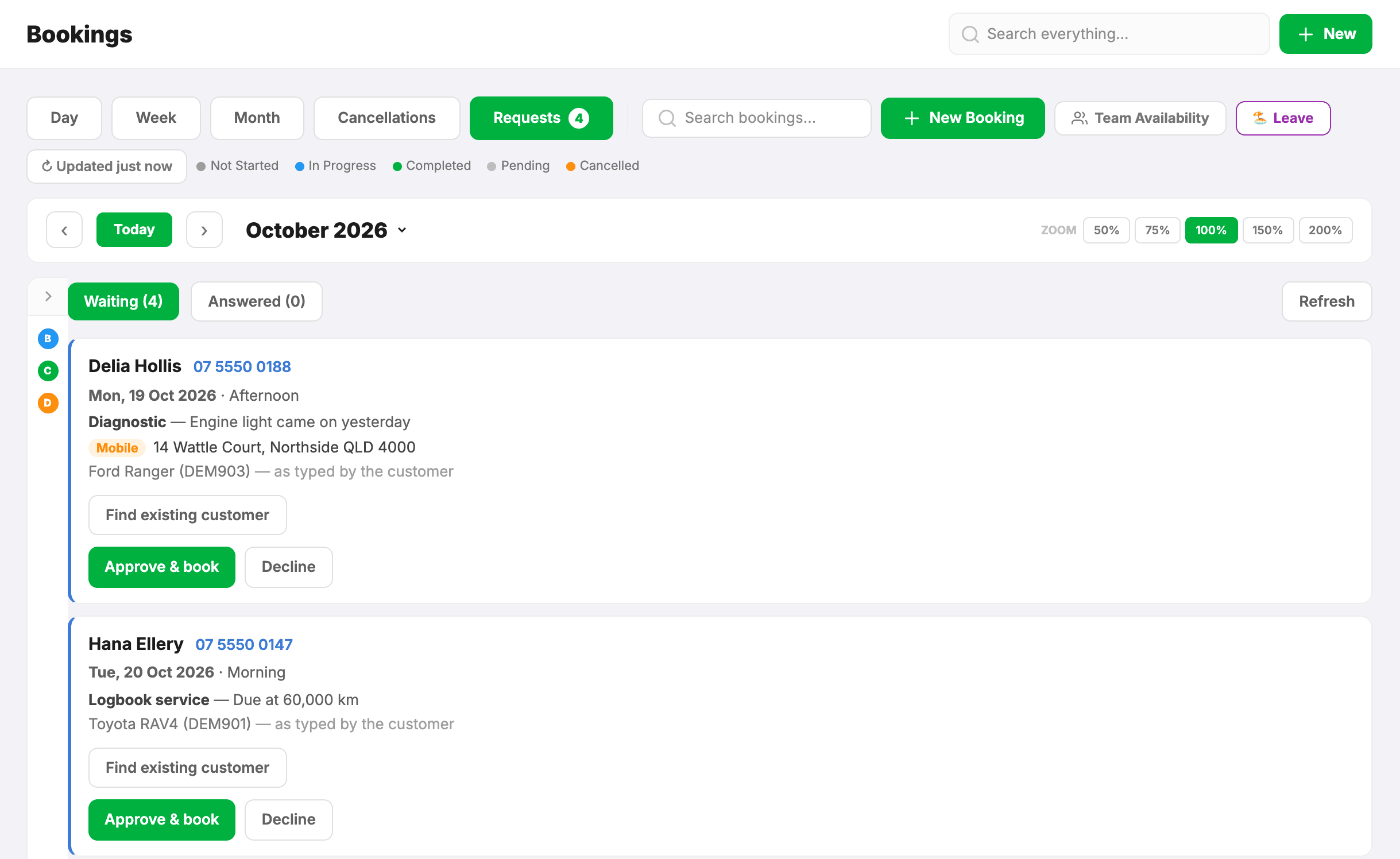
Requests appear on the Bookings page under Requests, with a count on the tab so you can see at a glance whether anything’s waiting.
Each one shows what the customer typed, then two choices:
- Approve & book — opens the booking with what they typed already filled in. If they’re already a customer, hit Find existing customer first and pick them from the list, and their car with that rego is chosen for you; otherwise the new-customer form is filled in from the request. Nothing is saved until you save the booking, so if you close it, the request is still waiting. We never match them automatically, because a name and a rego typed by a stranger is exactly the kind of thing that attaches a job to the wrong person.
- Decline — with a reason if you want one. Declining creates nothing at all, which is the point.
The reply is yours to send
When you approve, a message pops up ready to go to the customer — already written, using your own confirmation wording. It isn’t sent until you send it, and you can edit it first. Approving never texts the customer on its own; a message goes when a person means it to.
The booking is made either way. If you close that pop-up without sending, the job is still on the calendar — you’ve just not told them yet.
Get an email when one comes in
In Settings → Online Booking, turn on Email me each new request. Each request then sends one email to your workshop address (the one in Settings → Company Details) with the customer’s name, phone, car, the day they asked for and what they wrote, plus a button to your Requests list. It goes to you, never to the customer.
If the customer gave an email address, replying to that email reaches them. To stop a burst of spam filling your inbox, it sends at most ten an hour; every request still lands under Requests either way.
If nobody answers one
Nothing is deleted. A request sits in the queue until someone deals with it, even if the day it asked for has already gone by, and turning online booking off doesn’t clear the ones already waiting. You’ll still see it under Requests, and the customer is still worth a phone call.
More on the messages themselves in Connect Podium for SMS, and on the diary in Create a booking.