Create a booking
Bookings are the heart of the day. Take a customer call, drop the job on a tech’s schedule, send a confirmation, done.
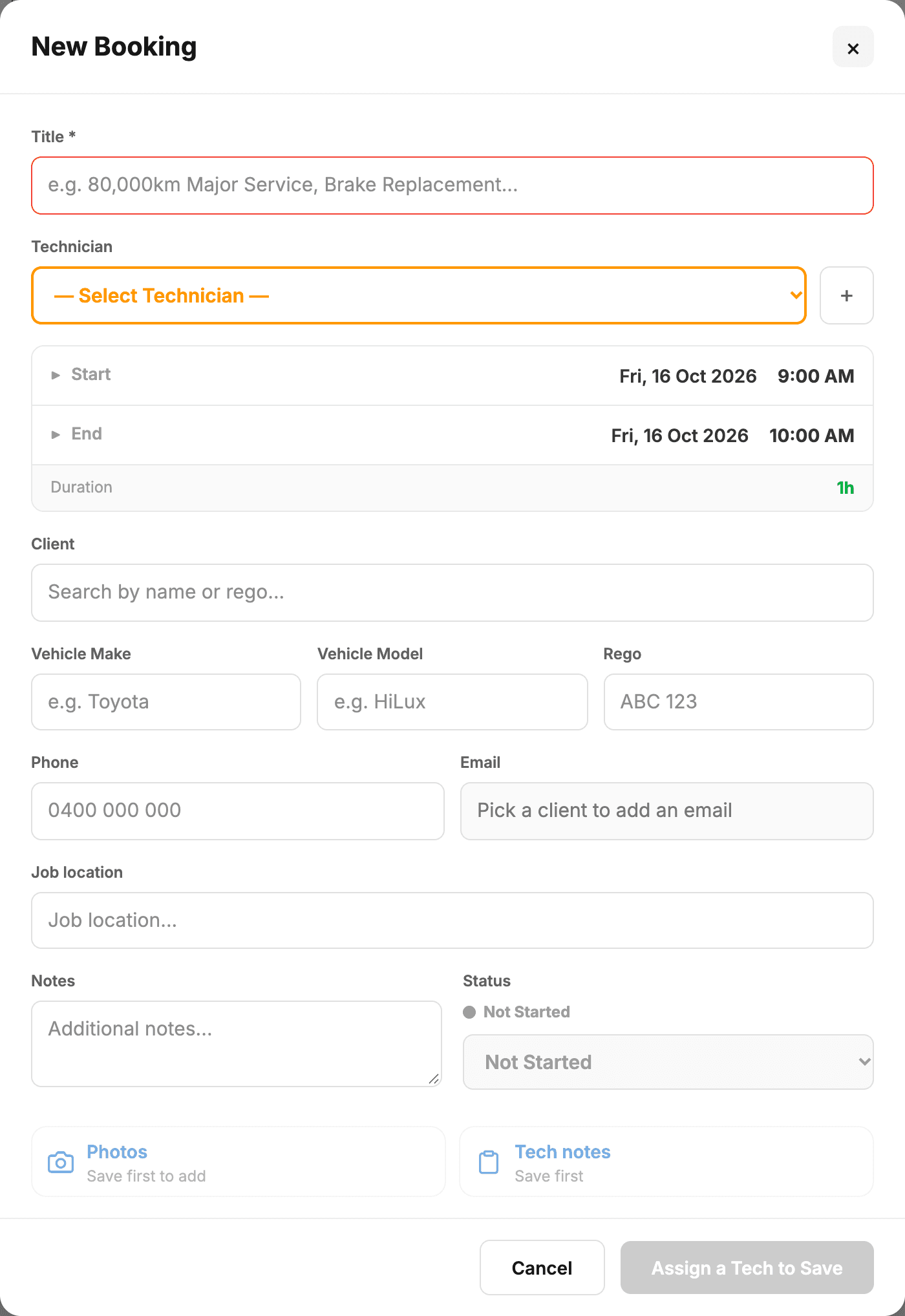
Quick booking from the calendar
- Open Bookings from the sidebar.
- Click an empty slot on the day and tech you want.
- The new-booking modal opens with the time pre-filled.
- Start typing the customer’s name or rego — autocomplete fills in the rest.
- Type a title for the job, set the duration, optionally add notes.
- Click Create Booking.
If the vehicle is new
Type the rego into the new vehicle’s Rego box and click the lookup button beside it — make, model, year and VIN fill in from the registration database. (Set up rego lookup under Settings → Integrations if you haven’t already.)
Send a confirmation
After saving, right-click the booking and choose:
- Send → Confirmation Email — a branded confirmation with the date, time, and vehicle.
- Send → Confirmation SMS — short text version; needs an SMS channel connected, either MechOS SMS or Podium.
- Send → Reminder Email or Reminder SMS — the reminder version, for before the day.
The Message customer button on an open booking sends the same messages. Change their wording in Settings → Communications, under Booking Confirmation and Booking Reminder.
Move or resize
- Drag a booking to move it to a different time or tech.
- Drag the bottom edge to change the duration.
- Right-click → Cancel job to cancel — the booking moves off the calendar into the Cancelled list underneath, in case it comes back.
- To restore a cancelled booking, right-click it and choose Restore to Active, or drag it back into place.
Overlaps
If two bookings happen to overlap on the same tech, they render side-by-side instead of stacked. You can see both, and click either to open it. We do this rather than warning because in real shops, overlaps happen — quick checks slot in between bigger jobs.
Let customers ask for a booking themselves
Everything above is you making a booking. Customers can also send you a request from a public page of your own — you still decide what the job is and when it goes in the diary, and nothing reaches your calendar until you approve it. See Take booking requests from your website.
Look back through the car’s history
Open the booking and tap View history on the vehicle card: its earlier visits, newest first, with the odometer and the work done. Tap a visit to open its invoice — Back brings you straight back to the list, so you can keep looking through the car’s past.
Convert to invoice or estimate
When the job’s done, right-click the booking and choose Convert to Invoice. You jump straight into the invoice builder with the customer and vehicle pre-filled. Same flow for Convert to Estimate if you’re quoting before approval.