Build and send a tax invoice
MechOS invoices are GST-compliant tax invoices by default — you don’t need to tick a box or pick a template. Build the invoice, send it, get paid.
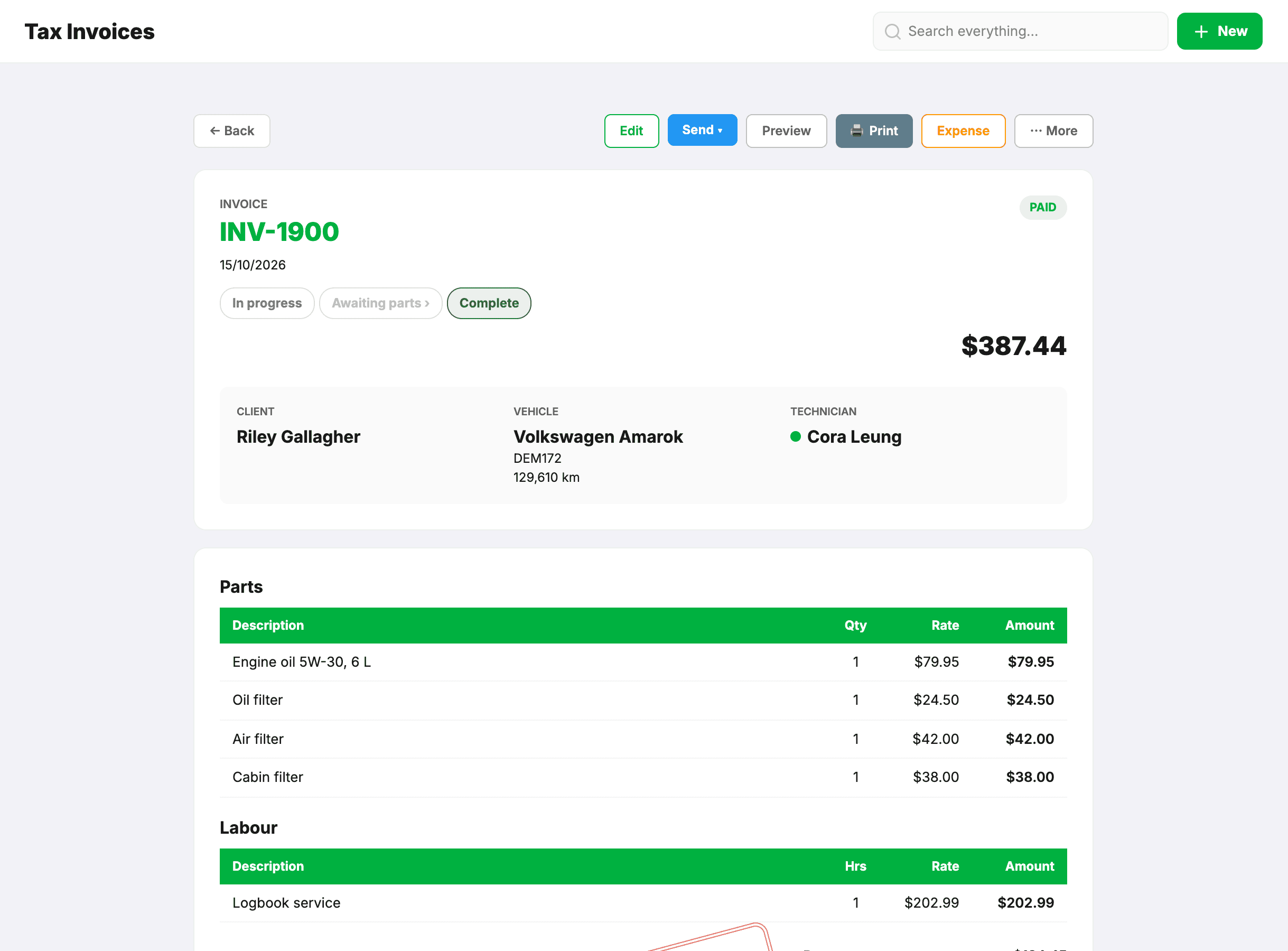
Build the invoice
- From a booking: right-click → Convert to Invoice.
- Or from scratch: Invoices → New invoice.
- Customer + vehicle autocomplete from your existing records.
- Click Add Part or Add Labour for each item — which section a line is in drives the parts/labour split in your reports.
- Discount can be applied per-line or at the whole-invoice level.
Tax
- GST (10%) is calculated on the line totals and shown in the footer.
- Card surcharging on eftpos, Visa and Mastercard has been banned in Australia since 1 October 2026, and MechOS no longer adds a surcharge. There’s nothing to switch off in MechOS. If your EFTPOS terminal adds a surcharge of its own, ask your payment provider to turn that off.
Send it
- Save the invoice.
- Click Send → Email — check the message, edit if you want.
- Send. The customer gets a PDF attachment and a link to their online copy, where they can pay by card once you take card payments.
Add photos
Save the invoice first, then use + Before or + After in the editor. Photos that came across from an estimate arrive already tagged Before.
The customer sees them on their online copy — the portal page the link in the email and SMS opens — tappable to view full size. They are deliberately kept off the PDF and the printed invoice, so the document stays short and the email attachment stays small.
The customer portal
The portal link in the email opens a public page (no login needed) showing the invoice, total, and a Pay Now button. Customers tap to pay by card via VenueSmart — funds settle into your Fat Zebra merchant account. Once the payment is confirmed, the invoice flips to “Paid” automatically.
Print or send again
- Print — opens a print-friendly view (no nav, no buttons).
- Send again — the same Send → Email flow, useful for chase-ups.