Send an estimate and convert it to an invoice
Estimates are quotes you send before the work is done. The customer approves it, you do the work, and you convert the estimate to an invoice when it’s time to bill.
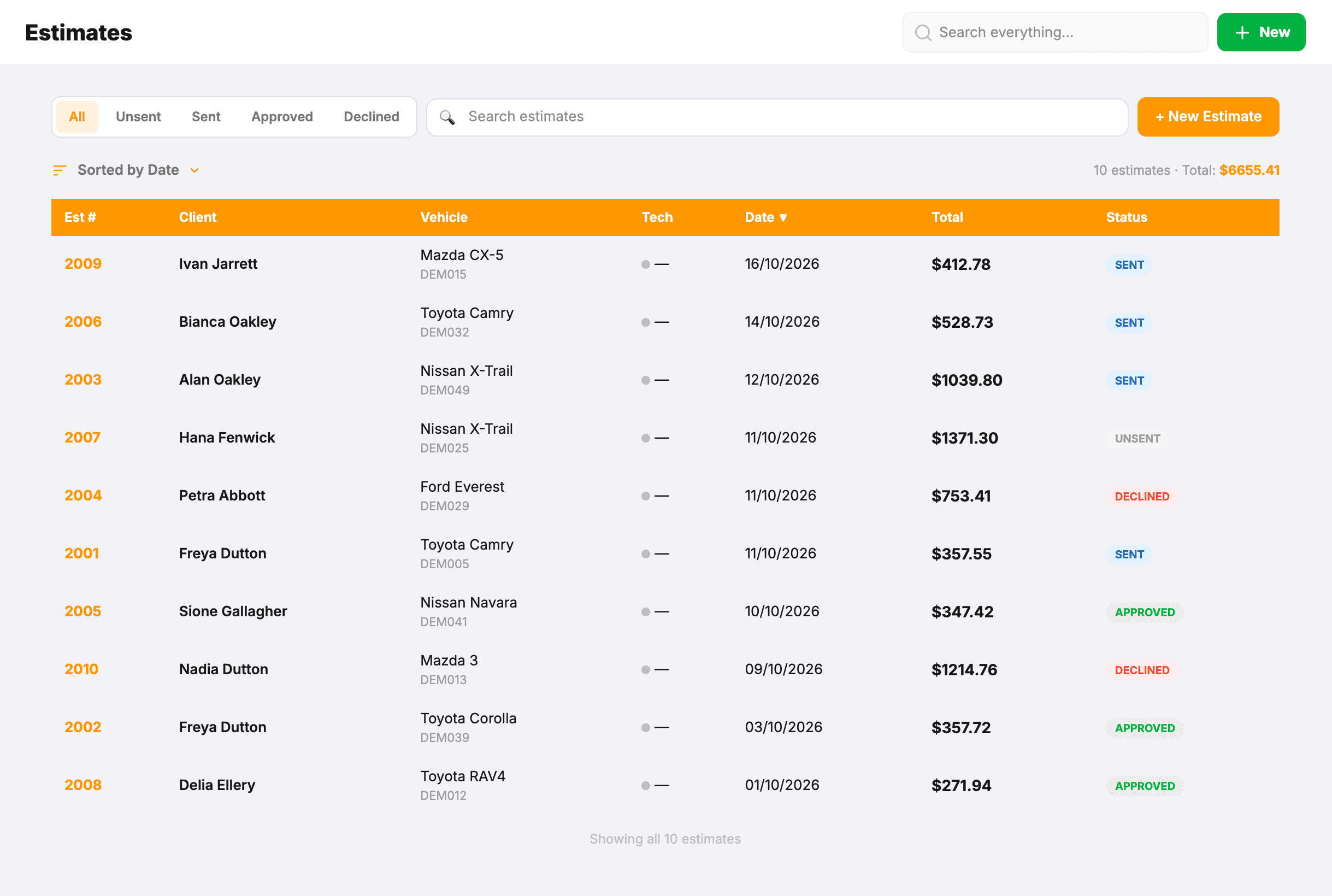
Create an estimate
- Estimates → New estimate.
- Customer, vehicle, lines — same builder as invoices.
- Set Valid (days) — a number of days from the estimate date, not a date. 14 by default.
- Save.
How long an estimate lasts
The Valid days run from the estimate date, so 14 days on a quote dated the 7th means it holds through the 21st. The figure prints on the estimate, the emailed PDF and the SMS.
Past that, the customer’s portal shows “This estimate has expired” with the date it lapsed — but the Approve button still works. That is deliberate: a customer trying to give you work should reach you, not a dead end. Treat it as a prompt to re-check your pricing before you start, not as a lock.
Add photos
Save the estimate first, then use + Add Photo in the editor. These are your “before” shots — the worn pads, the rusted line, whatever you are quoting to fix.
The customer sees them on their online copy — the portal page the link in every estimate email and SMS opens — under the totals, where they can tap any shot to see it full size. Photos are deliberately kept off the PDF and the printed page, so the document you hand over or file stays short.
When you convert the estimate to an invoice they come across too, tagged Before, so you can add the After shots against them on the invoice. The customer sees those on the invoice’s online copy the same way, with each one labelled.
Send for approval
Click Send → Email. The customer gets a PDF and a portal link. On the portal, they see two buttons, Approve and Decline, and a box to add a comment, for example to ask for a change.
- Approve flips the estimate to “Approved” and records when they answered.
- Decline flips it to “Declined”. If they’d like something changed, the comment is where they say so.
Their answer, the date and any comment show on the estimate in MechOS (“Client approved this estimate”), so you can revise it and send it again.
Convert to invoice
- Open the approved estimate.
- Click Convert to invoice.
- The new invoice copies every line and opens ready to edit (real-world job often differs slightly from the quote).
- The original estimate stays linked — it shows as Converted, with an Open INV-… button that takes you to the invoice.
Track your win rate
Reports → Estimates shows, for the period you pick, how many estimates you won (approved or converted), lost, and are still waiting on, and your win rate of the ones that got an answer. Under that:
- By kind of job — each estimate counted under its biggest labour line, so you can see which jobs you’re winning and which you’re losing the bid on.
- From approval to invoice — how long approved work typically waits before you bill it.
- Approved, not invoiced yet — every approved estimate still to bill, longest wait first.