Record a payment
Not every payment comes through the card portal. Cash, bank transfer, and in-shop EFTPOS need to be logged against the invoice so the balance ticks down to zero.
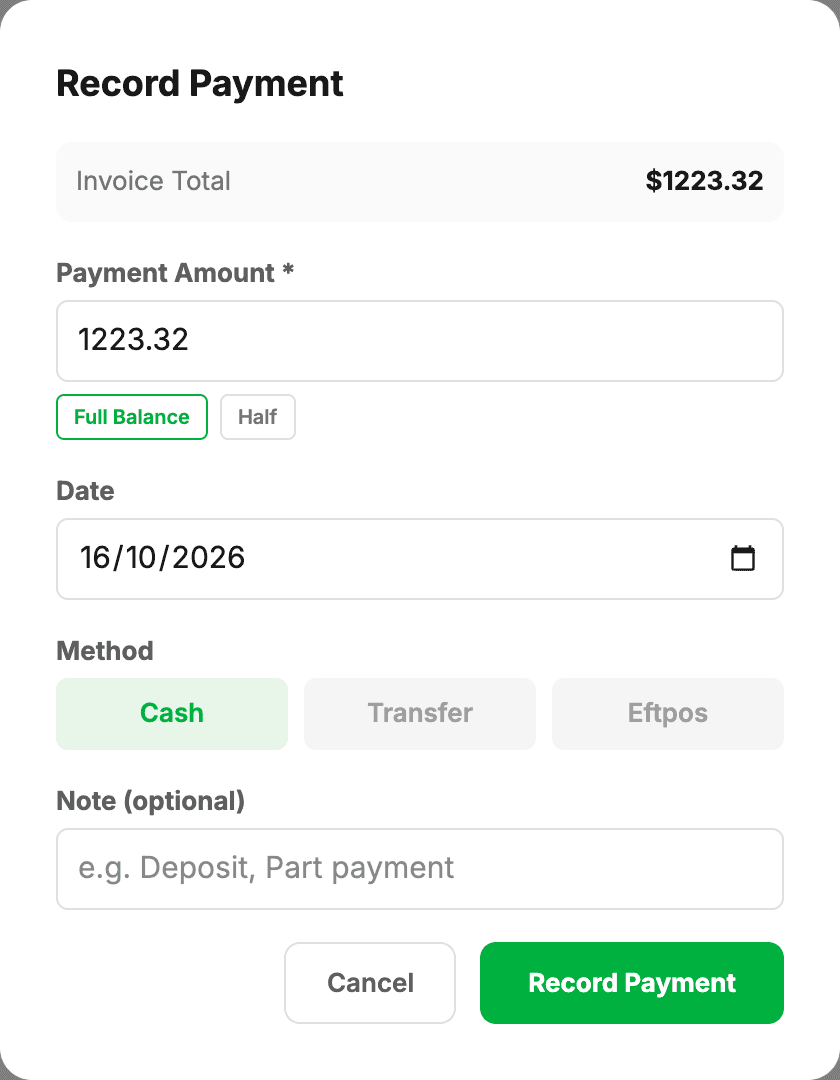
Add a payment
- Open the invoice.
- Click Record Payment. It shows while the invoice has a balance owing.
- Enter the amount — Full Balance and Half fill it in for you.
- Check the date. It starts as today.
- Pick the method: Cash, Transfer or Eftpos.
- Optionally add a note (e.g. “Deposit” or “Part payment”).
- Click Record Payment.
If your shop has a Linkly EFTPOS terminal paired, the payment window also offers Charge to EFTPOS terminal. That sends the amount to the PIN pad and records the payment for you once the card is approved.
A job with nothing to charge has no balance to collect, so the button reads Mark as Paid instead. It records a $0 “No charge” payment so the invoice moves to the Paid list.
Who can record a bank transfer
Only an owner, admin or service advisor — the people who can check the money has actually landed in the bank account. Cash and EFTPOS are taken at the counter, so anyone who works on invoices can record those. For a contractor the Transfer button is locked: if a customer says they’ve paid by transfer, pass it to the office to confirm and record.
Partial payments
Just enter less than the total. The invoice flips to Partial and what’s left shows in orange as the Balance Due. Record another payment when the rest comes in.
Paying also finishes the job
Paying an invoice in full marks its job status Complete if it isn’t already — however the money arrives. You can still set it Complete yourself when the car leaves, which is the usual way round; this just means a job never sits unfinished after it has been paid for. See Job status for the three states.
Paying a job that’s waiting on parts
If a payment you record settles an invoice that still has parts on order, MechOS then asks what happened to them: Parts arrived (marks them received), Still on order (leaves them waiting), or Cancel these parts — so nothing is settled silently. The Parts Centre article covers the full flow.
Online card payments
These appear automatically. When a customer pays via the portal Pay Now button, the VenueSmart webhook fires and records the payment for you. The method shows as “Card (VenueSmart)”.
Fixing or refunding a payment
A recorded payment can’t be edited. If one is wrong — the wrong amount or the wrong method — an owner or admin deletes it and it gets recorded again. Both buttons sit on the payment’s row under Payment Transactions.
- Delete — owner or admin only. It removes the payment record and the balance goes back up. It does not return any money to the customer.
- Refund — owner or admin only, on online card payments and EFTPOS terminal payments. The money goes back to the customer’s card (a terminal refund goes through the PIN pad) and a negative payment row is recorded for you. An online refund can take a minute to appear.