Job status: tracking the work, not the money
Every invoice carries a job status, which is a different question from whether it has been paid. Paid, partly paid and unpaid describe the money. In progress, Awaiting parts and Complete describe the work.
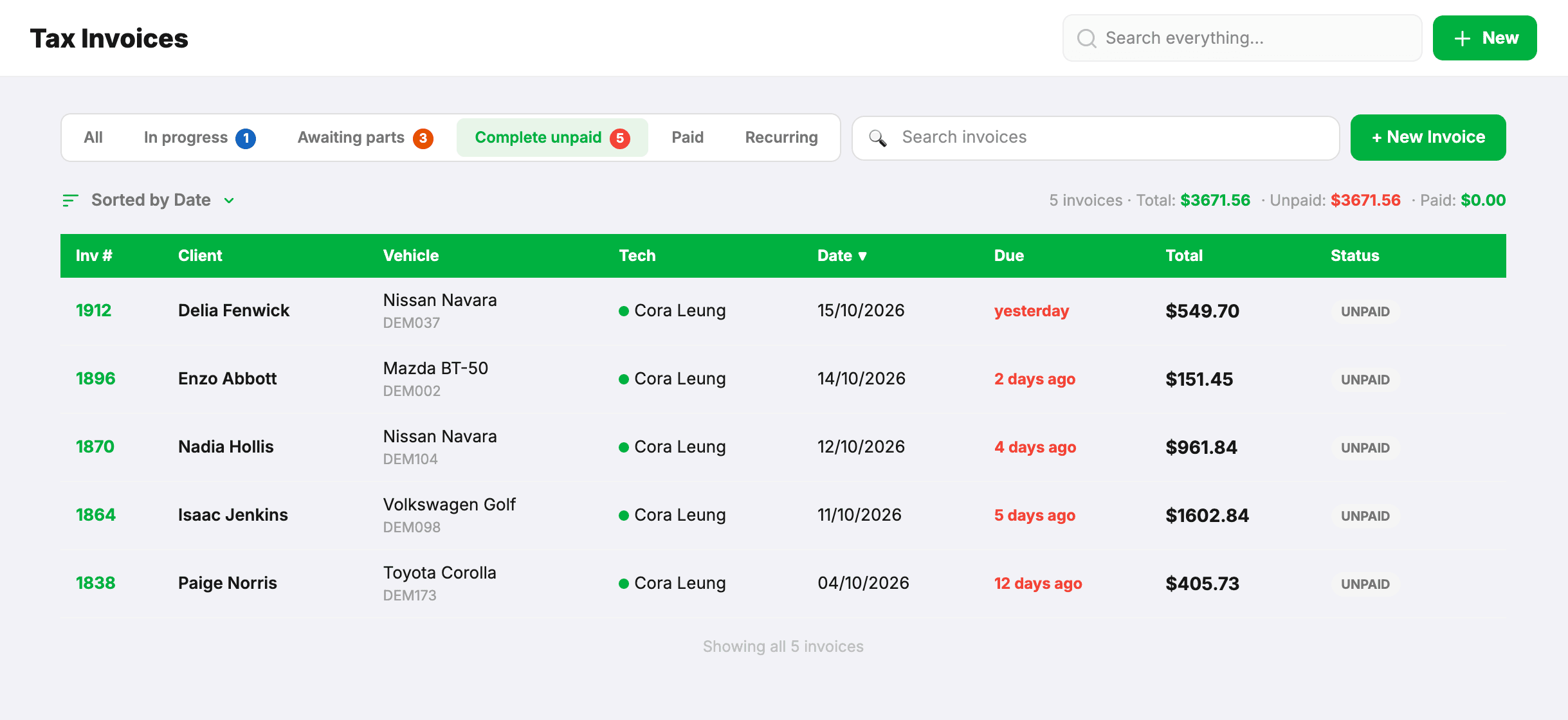
Keeping them apart is what stops a car that’s still on the hoist looking like a customer who owes you money.
Why it exists
Most workshops raise the invoice the moment the car arrives, so the job can go to a technician. That’s the right way round — but it means a job that takes two weeks sits in your unpaid list for two weeks, next to people who genuinely haven’t paid. The list stops being worth reading.
Job status separates the two, so Complete unpaid becomes the short, accurate list of money actually owed.
The three states
- In progress — the car is with you and the work is going on. Set automatically when the invoice is created.
- Awaiting parts — you can’t go further until something arrives. You don’t set this one by hand: order the part in the Parts Centre and the job parks itself. See below for why.
- Complete — the work is done and the car has gone. This is the one you set by hand.
Jobs can move backwards. If parts land and the car goes back on the hoist, set it back to In progress — nothing is locked.
A job from start to finish
- Car arrives. Raise the invoice as normal. It starts as In progress on its own.
- Waiting on a part? Raise the order in the Parts Centre — from the job’s menu, or by tapping Awaiting parts on the status control, which takes you straight there. The job parks itself once there is an order against it.
- Part arrives. Mark it received. The job stays Awaiting parts and moves to the Parts Centre’s Arrived list — parts landing isn’t the same as the customer being booked back in, and you’re often chasing them for days. Press Release when the car is actually coming, and the job returns to In progress.
- Work finishes, car leaves. Set it to Complete. This is the only new step.
- Customer pays. Paying in full marks the job Complete for you if you haven’t already — card, EFTPOS, transfer or cash, it makes no difference.
Why you can’t just tick “Awaiting parts”
Parking a job is the one thing that makes the system stop asking for money: it drops out of the debt list and out of payment reminders. A job parked with nothing on order is therefore money nobody will ever be reminded about, and the failure isn’t parking a job — it’s forgetting one.
So the only way in is the part order. You get a supplier, an ETA and something to chase, and the job appears in the Parts Centre where it’ll be looked at again. Cancel every line on the order and the job comes back to In progress by itself.
Where to find it
On the invoice itself — three buttons under the paid/unpaid badge — and on the invoice list. On a phone, swipe a job and the status options are on the menu.
The list tabs are All, In progress, Awaiting parts, Complete unpaid, Paid and Recurring. In progress, Awaiting parts and Complete unpaid show a count. Complete unpaid is your real debtors list: finished work that hasn’t been paid for. It’s the only one payment reminders are sent from.
Things worth knowing
- An invoice needs at least one line before it can be marked Complete. A job isn’t finished until it says what was done.
- You can send an invoice at any stage. Sending doesn’t change the job status and never waits for Complete — invoice mid-job whenever it suits.
- A refund doesn’t un-finish the work. If you refund a completed job it stays Complete and goes back to unpaid, which is exactly where it belongs on a debtors list.
- It doesn’t show on the invoice. The invoice and the customer portal look the same either way.
- Forgetting has one cost. A job left In progress isn’t chased for payment until it’s marked Complete. It marks itself Complete when the invoice is paid.