Manage jobs waiting on parts (Parts Centre)
The Parts Centre is where jobs go when they’re waiting on parts. Instead of a job sitting half-finished on the calendar with no clear status, you shelve it and track every part on order. When the parts land it moves to a ready list — but it stays on hold (out of your debt list) until you release it, so a job never looks like a debt while you’re still chasing the customer to book in.
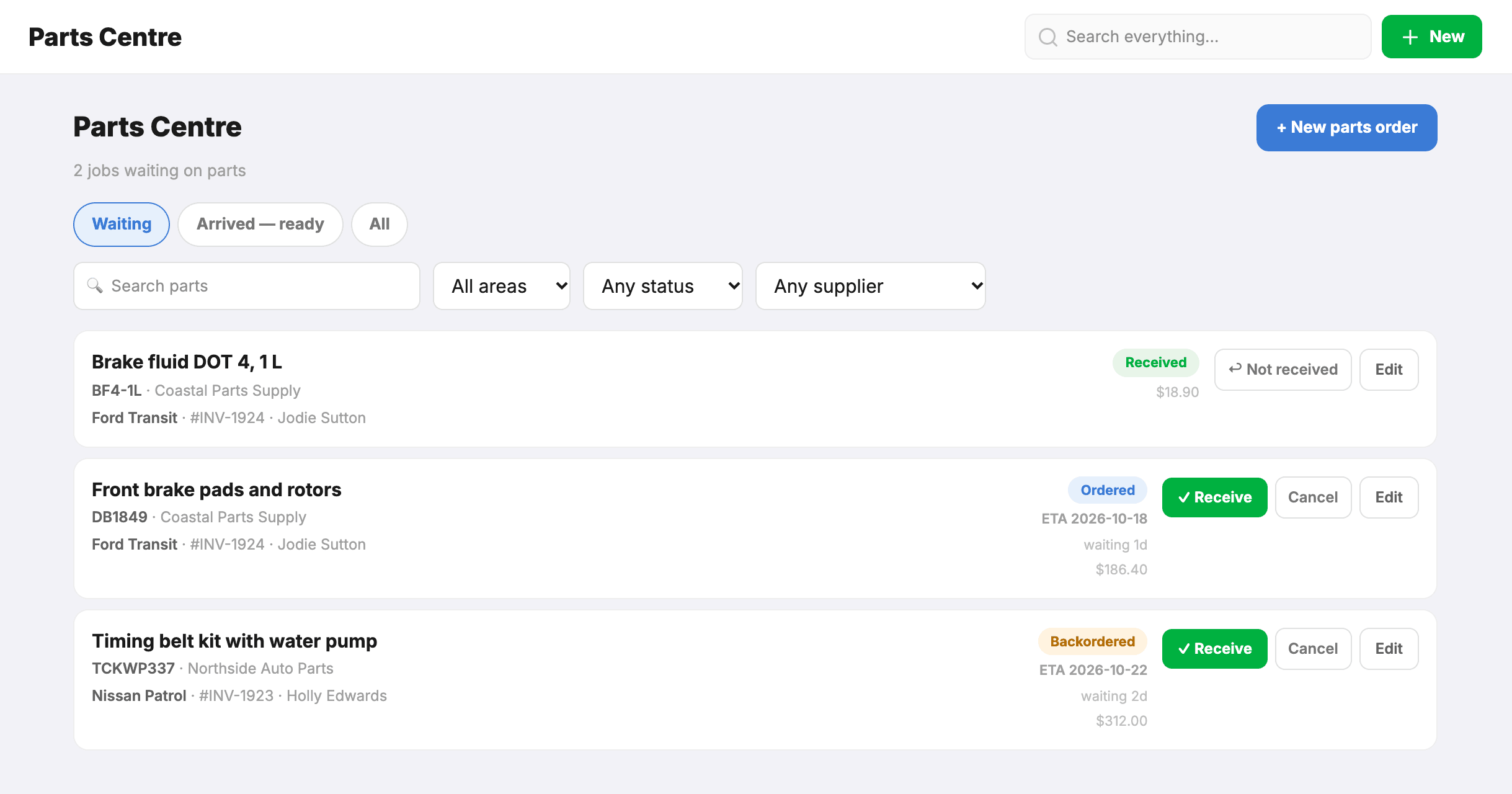
Shelve a job as waiting on parts
Two ways, whichever’s quicker:
- From the Parts Centre — click + New parts order, search for the job (by rego, customer, or job number), then add each part with its supplier and ETA.
- From an invoice — right-click the invoice (or tap the ⋯ menu on mobile) and choose Waiting on parts. On the invoice itself, Awaiting parts on the status control does the same. Either way it opens this add form with that job already selected.
Find what you’re chasing
Three tabs across the top:
- Waiting — jobs with any part still on order (your chase list). A half-arrived job shows here too, with both its arrived and still-on-order parts, until every part is in.
- Arrived – ready — jobs whose parts have all landed, ready to book back in.
- All — every open part, plus anything received or cancelled in the last 90 days.
And filters to narrow a long list:
- Search matches anything on the row — part, part number, rego, client, vehicle, tech, notes, job number.
- Area — Workshop vs Mobile.
- Status and Supplier — e.g. chase one supplier’s whole backlog at once.
- Just mine — only jobs assigned to you.
Receive parts, then release when booked
- When a part arrives, hit ✓ Receive on its row.
- Only some arrived? Receive the ones that did — the job stays in Waiting (showing both the arrived and the still-on-order parts) until every part is in, so you can’t release or notify the customer too early. For a part-quantity short (2 of 4 of one line), open Edit and set the received quantity.
- Once the last open part is received, the job moves to Arrived – ready — but it stays on hold. Parts arriving isn’t the same as the customer being booked in.
- When you’ve got the customer booked, hit ✓ Release (or right-click the invoice and choose Mark in progress). That takes the job off hold and puts it back to In progress.
While a job is on hold it shows a 🔧 badge on the bookings calendar so everyone can see at a glance it’s parked.
Let the customer know
On a ready job, hit 📣 Notify to tell the customer their parts are in. Pick SMS, Email, or both in the send form. Nothing goes out automatically — you choose when, so it fits your booking schedule.
{{client_name}} and {{vehicle_make}} that fill in per job.How it keeps your books clean
Awaiting parts is one of the three job states (see Job status), and like In progress it means the work isn’t finished — so the job doesn’t behave like a debt:
- It’s left out of Complete unpaid on Invoices — only finished jobs count as money owed, so that list stays clean.
- It won’t trigger overdue reminders — the customer is never dunned for an unfinished job.
- Automatic overdue reminders count the customer’s terms from when you release the job, not from when it was parked.
You can see all of them under Invoices → Awaiting parts. When the parts land the job stays parked and moves to the Arrived list — it only returns to In progress when you press Release, which is also when overdue reminders start counting. Taking a deposit works as normal — just record a partial payment on the invoice.
Cancelling and deleting
- Cancel (one tap on the row) — the part is no longer needed; the record stays under the All tab for 90 days.
- Edit → Delete permanently — removes a genuine mistake for good.
Paid before the parts arrived?
That’s fine — a job can be paid (or have a deposit) and still be waiting on a special-order part. If a payment you record settles a job that still has parts on order, MechOS then asks what happened: Parts arrived (mark received), Still on order (leave it waiting), or Cancel — so nothing closes off silently.