Inventory & reports
Run a stocktake
3 min read
A stocktake counts what’s actually on the shelf and corrects your on-hand numbers in one go. It works from a snapshot: the moment you start a count, MechOS records what it thinks you have. You count against that, and only the difference is applied — so anything sold or received after you’ve counted an item is still accounted for.
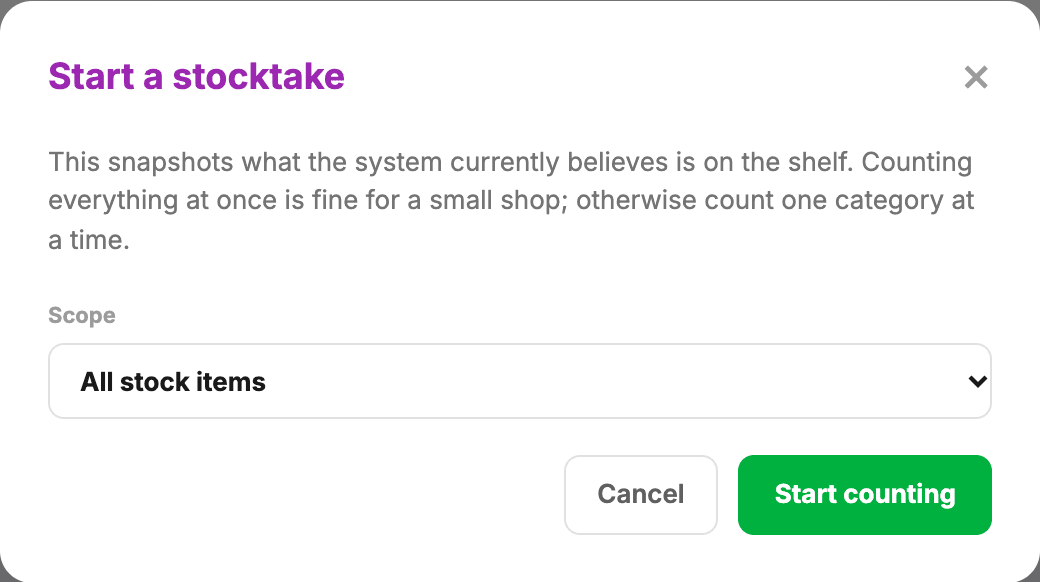
Run a count
- Go to Stock → Stocktake and click Start a count.
- Pick the scope — all stock items, or a narrower group if you’re only doing one shelf.
- Work down the count sheet entering what you physically have. The Expected column shows the snapshot figure.
- Check the running summary: how many you’ve counted out of the total, how many don’t match, and the variance in dollars.
- When you’re done, hit Apply count.
Heads up:A blank line means not counted yet — it is not the same as entering 0. Blank lines are left completely alone when you apply. If an item really is down to none, type 0.
What applying does
Every counted line with a difference is recorded as a stock movement with the reason Stocktake. The whole count is applied as one operation — it either all lands or none of it does, so you can’t end up half-adjusted.
The variance is measured against the snapshot taken when you started, so count each item before any more of it sells or arrives.
Part-way through
- An open count stays open — press Save progress before you close the tab, and pick up where you left off.
- Cancel throws the count away. Nothing counted is applied.
- Finished counts are listed under Past counts.
Tip:For a one-off correction — a breakage, a lost item — don’t start a stocktake. Use Adjust stock on the item record, choose Adjust and add a note. Stocktakes are for counting a whole shelf or the whole shop.
Still stuck? We’d rather help than have you guess.
Email us →