Inventory & reports
Raise a purchase order and receive stock
3 min read
A purchase order is what you send a supplier to order stock, and what you check the delivery against when it turns up. Stock only moves when you receive against the order — raising a PO never changes your on-hand numbers.
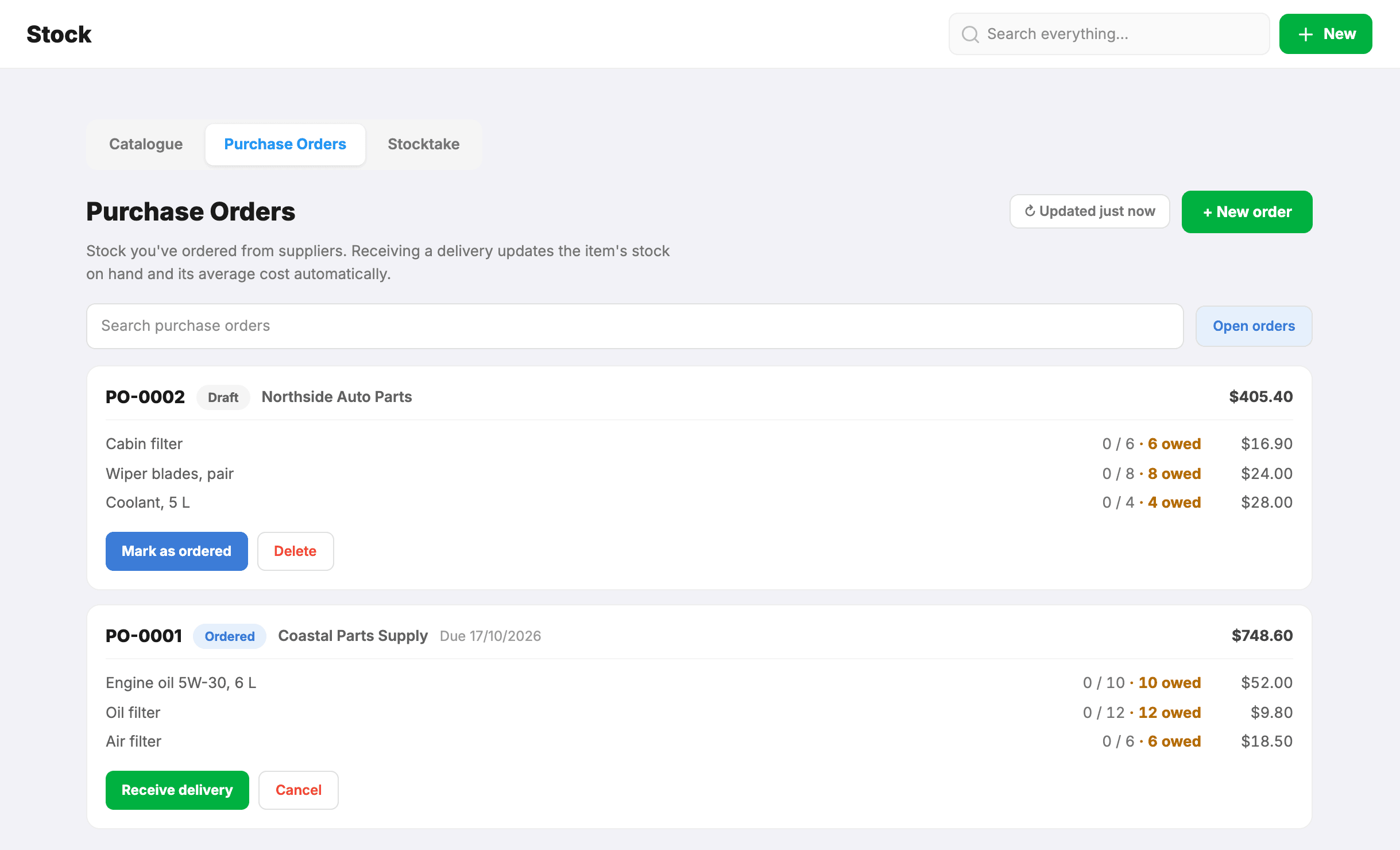
Raise an order
- Go to Stock → Purchase Orders and start a new one.
- Pick the supplier and add lines: part, quantity, unit cost.
- Save as draft if you’re still building it, or Save & mark ordered once it’s away to the supplier.
Statuses run Draft → Ordered → Part-received → Received, so at a glance you can see what’s still out with a supplier.
Receive a delivery
- Choose Receive delivery on the order.
- Enter what actually arrived, line by line. Short deliveries are normal — receive 6 of 10 and the order sits at Part-received with 4 outstanding.
- When the rest lands, receive against the same order again.
Each receipt adds only what you enter as arriving now, on top of what has already been received.
Heads up:If someone else receives against the same order while you have it open, MechOS reloads rather than letting both go through. Re-enter your quantities against the refreshed numbers.
Purchase orders vs the Parts Centre
These look similar and do different jobs:
- Purchase Orders — buying stock for the shelf. Supplier-driven.
- Parts Centre — tracking which customer jobs are waiting on a special-order part. Job-driven.
Tip:Ordering a part for one specific job? That belongs in the Parts Centre, so the job goes on hold and stays out of your debt list while you wait.
Still stuck? We’d rather help than have you guess.
Email us →