Generate reports and BAS figures
Reports are under the Reports tab, in eleven tabs from an overview of the period to your GST / BAS figures. They’re mostly tables, made for reading on the screen.
Day-to-day reports
- Overview — revenue, expenses and gross profit for the period, each against the period before, plus average invoice and revenue per tech.
- Unpaid & Aging — unpaid invoices grouped by age (0–30, 31–60, 61–90 and 90+ days), with the days out on each. Only completed jobs appear — anything still in progress or waiting on parts is excluded — so this stays a clean list of money actually owed rather than cars still in the workshop.
- Parts & Labour — every part and labour line you sold in the period, with quantity and revenue, plus billable vs actual hours (see below). The overall parts vs labour split is on Profit & Turnover.
- Technicians — each tech’s available hours against the hours applied to jobs, with utilisation. Identifies the bottlenecks.
- Estimates — your win rate, which kinds of job you win and lose, and approved work still to invoice. See Send an estimate and convert it to an invoice.
- Inspections — the checks that most often find something, by make and model if you like, and each tech’s inspections side by side. See Service checklists and inspections.
Capacity & utilisation
Also on Parts & Labour, this is the hours you sold against the hours you paid for. Utilisation is sold ÷ staffed, and it needs no timer — it stands whatever your clocking coverage is.
- Only technicians with weekly hours set are counted. A workshop’s user list is not its roster: the service advisor, the manager and the owner all need logins, and none of them is eight bookable hours a day. Set each person’s hours under Bookings → Team Availability and they start counting from then on. The card names anyone it has left out, and leaves out their jobs too — counting the work without the capacity would inflate every figure on it.
- Approved leave comes off automatically. A tech with a week booked off has a week fewer staffed hours, so their utilisation isn’t punished for being away.
- vs shop compares each technician against your own shop average, in percentage points. Nothing outside your workshop is involved. A gap under two points reads as “about average”, because utilisation moves a point on one job landing either side of a month end.
Billable vs actual hours
On the Parts & Labour tab, this compares the hours you sold against the hours a job actually took. Actual hours come from the job timer technicians start and stop in My Jobs.
- Sold hours = labour ÷ your hourly rate. Because some jobs are billed hourly and others at a fixed price, counting only the hourly lines would score every fixed-price service as zero billable time. A $265 service at a $150 rate counts as 1.8 hours — what you priced that job at, in hours.
- The rate is your most common labour rate for the period. Change it in the box on the card if that is not the one you want to measure against.
- Efficiency is sold ÷ actual. Under 100% means the work took longer than you charged for. Labour recovery is the labour dollars earned per hour actually spent on the job.
- Start/stop taps under a minute are ignored as mis-taps, and a timer still running is not counted until it is stopped.
Clients and vehicles
- Clients — what each client spent in the period: who’s actually paying the bills. Often surprising. Click one to see their invoices.
- Statement of account — printable / emailable summary of one client’s invoices, payments, and balance. Make one from the client’s record, or from a client on the Clients tab.
- Service history isn’t a report: it’s under Service History on the client’s record (pick the car), and behind View history on a booking. Handy before a call-back.
For your accountant
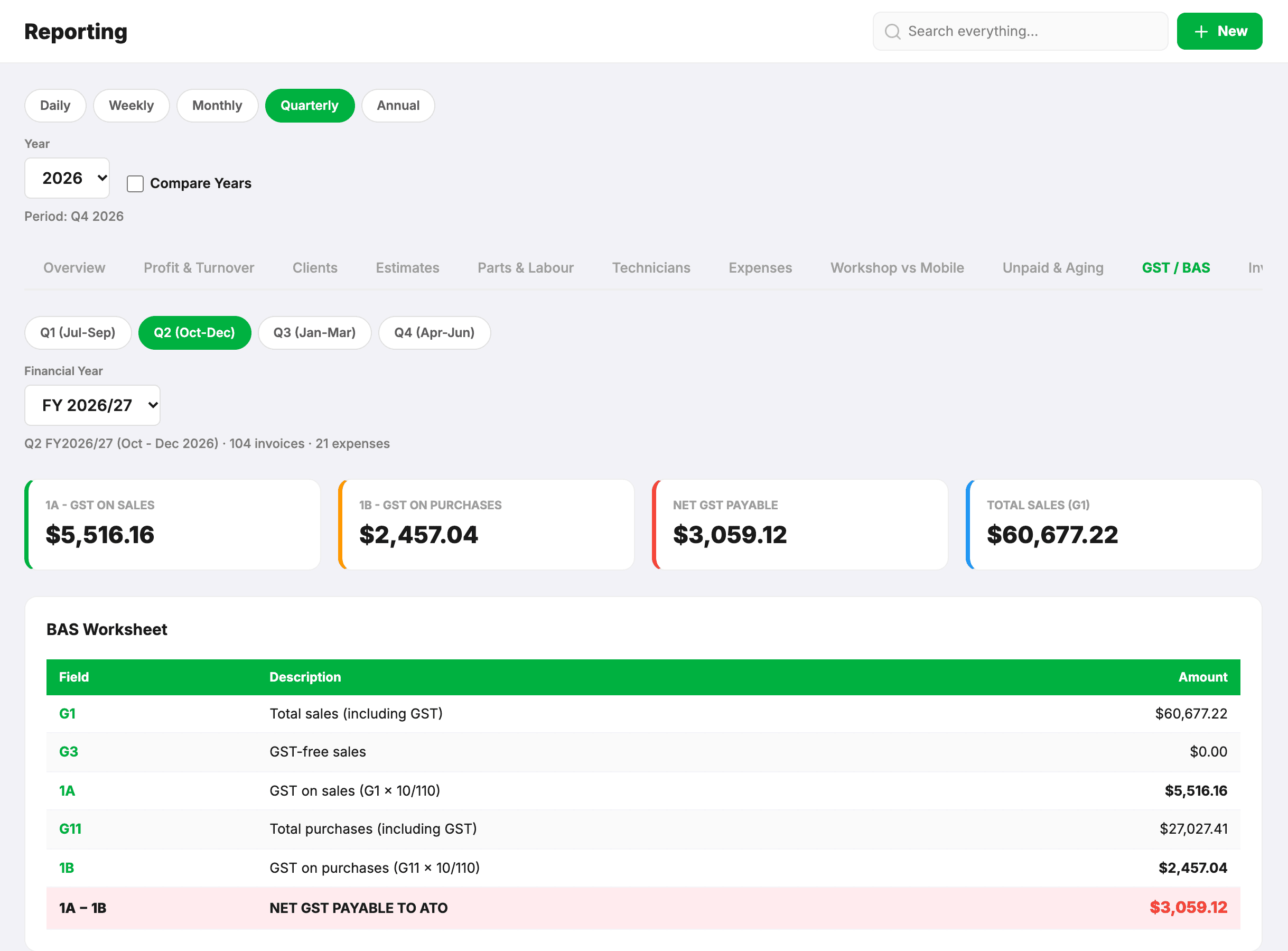
- GST / BAS — the Reports tab with each quarter’s GST collected, GST paid, sales and purchases, counted by invoice date (the accruals basis), for your Business Activity Statement.
- CSV exports — Settings → Import / Export → Export Data: clients, vehicles, invoices, estimates, expenses, your parts and labour catalogue, fleet and assets, one spreadsheet each.
- Full data export — Settings → Privacy & Data → Download My Data: a ZIP of your records (one JSON file per table) and their photos.
Periods and years
Along the top, choose Daily, Weekly, Monthly, Quarterly or Annual, and the year; it opens on this month. Compare Years lays other years over the chart. Years run July to June unless you set Reporting Year to calendar under Settings → Formats & Regional. GST / BAS has its own quarter and financial-year picker.