Email supplier invoices straight into Expenses
MechOS can read the supplier-invoice PDFs sent to your private MechOS address and turn them into Expenses automatically — no typing them in by hand. You still get every invoice in your own inbox, exactly as before; MechOS only needs a copy. And there's no clutter: MechOS only reads invoices from suppliers on your allow-list, and quietly ignores everything else.
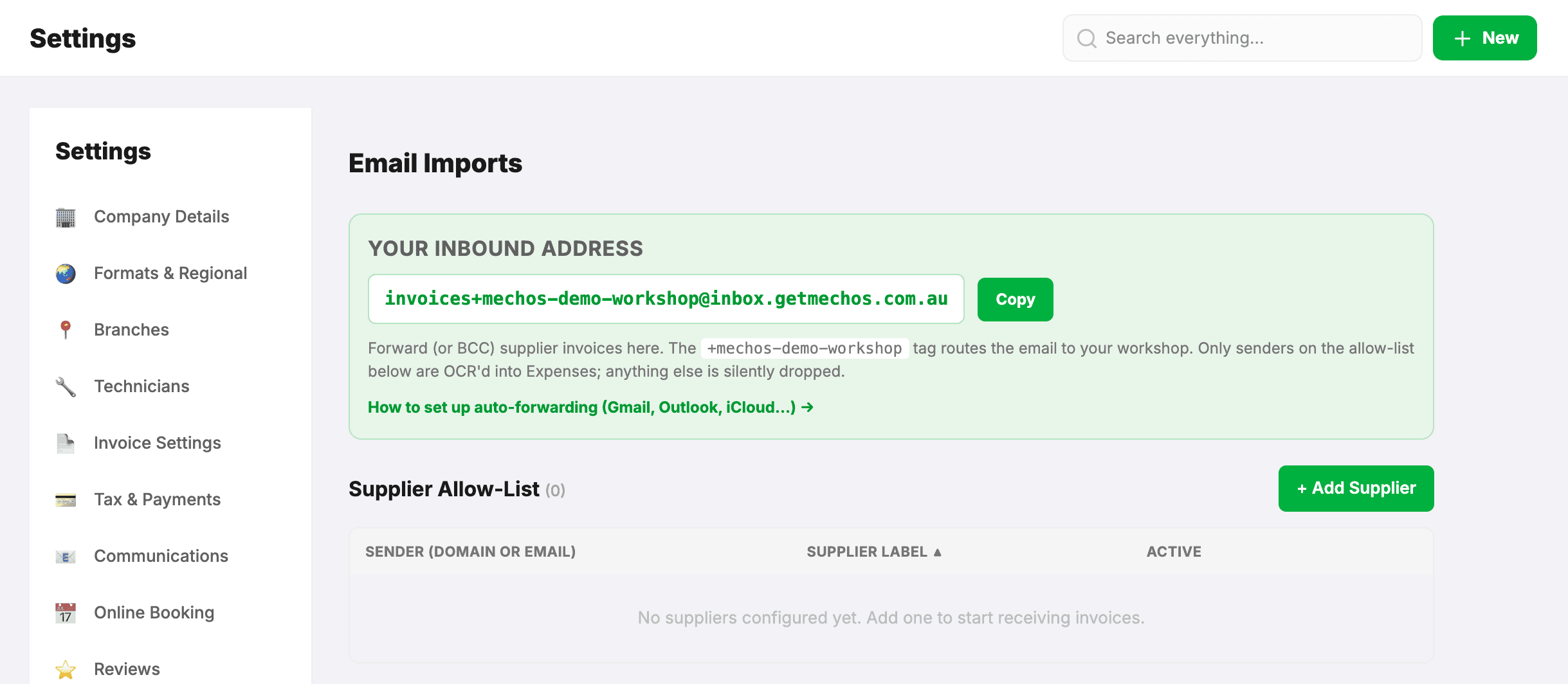
Your address is shown at the top of Settings → Email Imports — it looks like invoices+your-workshop@inbox.getmechos.com.au. Copy it from there.
Two ways to do it
- A · Auto-forward rule in your email (recommended). Set it up once and it catches invoices from every supplier on your allow-list. Your inbox copy is never touched. The rest of this guide walks through it for each email provider.
- B · Add the address at your supplier. Tell each supplier's portal to also send invoices to your MechOS address. Simple, but you do it for each supplier one at a time.
Set up an auto-forward rule
Find your email provider below. Not sure which you have? @gmail.com is Gmail; email that came with your website domain is usually Google Workspace, Microsoft 365, or cPanel webmail; @outlook.com / @hotmail.com is personal Outlook; @icloud.com is iCloud.
Gmail (personal @gmail.com)
- Open Gmail at mail.google.com and sign in.
- In the search box, click the Show search options icon (the sliders/funnel).
- Enter criteria that match your invoices only — your suppliers' addresses in From,
invoicein Subject, or tick Has attachment. - Click Search, then Create filter at the bottom.
- Tick Forward it → Add forwarding address, and enter your MechOS address.
- Leave Delete it and Skip the Inbox unticked, then click Create filter.
Keeps a copy: with Delete it and Skip the Inbox unticked, Gmail keeps the original in your inbox and sends MechOS a copy only. Scope it using the search fields so your whole mailbox isn't forwarded — combine suppliers with OR.
Google Workspace (Gmail on your business domain)
- Open mail.google.com and sign in to your business email.
- Click the Show search options icon (funnel) in the search box.
- Enter criteria — e.g.
from:(supplier@example.com),subject:invoice, or Has attachment. - Click Search, then Create filter.
- Tick Forward it → Add forwarding address and enter your MechOS address.
- Make sure Delete it, Skip the Inbox, Mark as read and Mute are all unticked, then Create filter.
Keeps a copy: with the delete/archive boxes unticked, the original stays put and MechOS gets a copy. Add more from: clauses (separated by OR) to cover several suppliers.
getmechos.com.au).Outlook.com / Hotmail (personal)
- Sign in at outlook.office.com and click the Settings (gear) icon.
- Go to Mail → Rules and click Add new rule. Name it, e.g. Forward invoices to MechOS.
- Under When the message arrives, add a condition — From a supplier, Subject includes
invoice, or Has an attachment. - Under Do the following, choose Redirect to and enter your MechOS address. Redirect keeps the supplier as the sender, which MechOS needs to recognise them; Forward sends it from you instead.
- Do not add Delete, Move, or Mark-as-read — only Redirect. Click Save.
Keeps a copy: choosing only Redirect to (no Delete/Move) sends MechOS a copy while your original stays in your inbox. Conditions must all match, so unrelated mail isn't sent on.
Microsoft 365 (business email)
- Sign in to Outlook on the web at mail.office.com, click the Settings gear, and choose Mail.
- Choose Rules → Add new rule. Name it, e.g. Forward supplier invoices to MechOS.
- Add conditions — From your supplier domains, Subject contains
InvoiceorPO, or Has attachment (all must match). - Under Add an action, choose Redirect to and enter your MechOS address. Redirect keeps the supplier as the sender, which MechOS needs; Forward to and Forward as attachment send it from you instead.
- Do not tick Delete the message or Move to trash. Click Save.
Keeps a copy: Redirect to with no delete/move ticked leaves your original invoice untouched in your inbox.
cPanel Webmail (Roundcube or Horde)
If your email came with your website hosting, use a filter (not a plain forwarder) so you can target invoices and keep a copy.
- Log into cPanel webmail (usually a
/webmailaddress). - Roundcube: Settings → Filters → +. Horde: Mail → Filters → New Rule.
- Set conditions with AND: From contains your supplier, Subject contains
invoice, optionally Has Attachment. - Roundcube: choose Redirect message to your MechOS address, then add a second action Keep a copy of the message. Horde: choose Deliver to my INBOX and redirect to your MechOS address.
- Click Save.
getmechos.com.au to your safe-senders.iCloud Mail (icloud.com)
- Go to icloud.com/mail and sign in.
- Click the Settings (gear) icon above the mailbox list → Settings → Rules → Add a Rule.
- Under If a message, choose is from and enter a supplier's address (one rule per supplier), or whose subject contains
invoice. - Under Then, choose Forward to and enter your MechOS address. Do not pick a move-to-trash or delete action.
- Click Done.
Keeps a copy: an iCloud Rule with a Forward to action leaves the original in your inbox and sends MechOS a copy. Prefer not to make a rule per supplier? iCloud can forward all mail (Settings → Mail Forwarding) with Delete messages after forwarding unticked — MechOS still only reads allow-listed suppliers.
Add the address at your supplier instead (option B)
Prefer not to touch your own email? Tell each supplier to also send your invoices to MechOS.
- Log in to your supplier's online account or ordering portal.
- Find the invoice or billing settings — often under Account, Billing, Invoice preferences, or Notifications.
- Look for a field like CC invoices to, Additional invoice email, or Second recipient, and enter your MechOS address.
- No CC field? Email the supplier's accounts team and ask them to add your MechOS address as a second recipient.
If an invoice doesn't show up
- Is the supplier on your allow-list? MechOS only reads invoices from senders you've approved. Add the supplier to the allow-list in Settings → Email Imports; their next invoice will come through.
- Did the forward keep the supplier's original “From”? MechOS identifies invoices by the original sender. Use an auto-forward rule (above) so the supplier's From is preserved — some manual forwards replace it with your own address.
- Business email? Microsoft 365 / Google Workspace admins can block external forwarding — ask your admin to allow it.
- Older invoices that arrived before you set up the rule aren't sent automatically — add those few in Expenses yourself if you need them.
- Still nothing after a few minutes? Forwarding can take a little while to kick in. Give it time, then check again — or use Get help and we'll take a look with you.