Track parts inventory
Inventory in MechOS is a ledger, not a perfect mirror of your physical stock. Parts go in when you receive them; they come out when you put them on a customer invoice. The difference is what should be on the shelf.
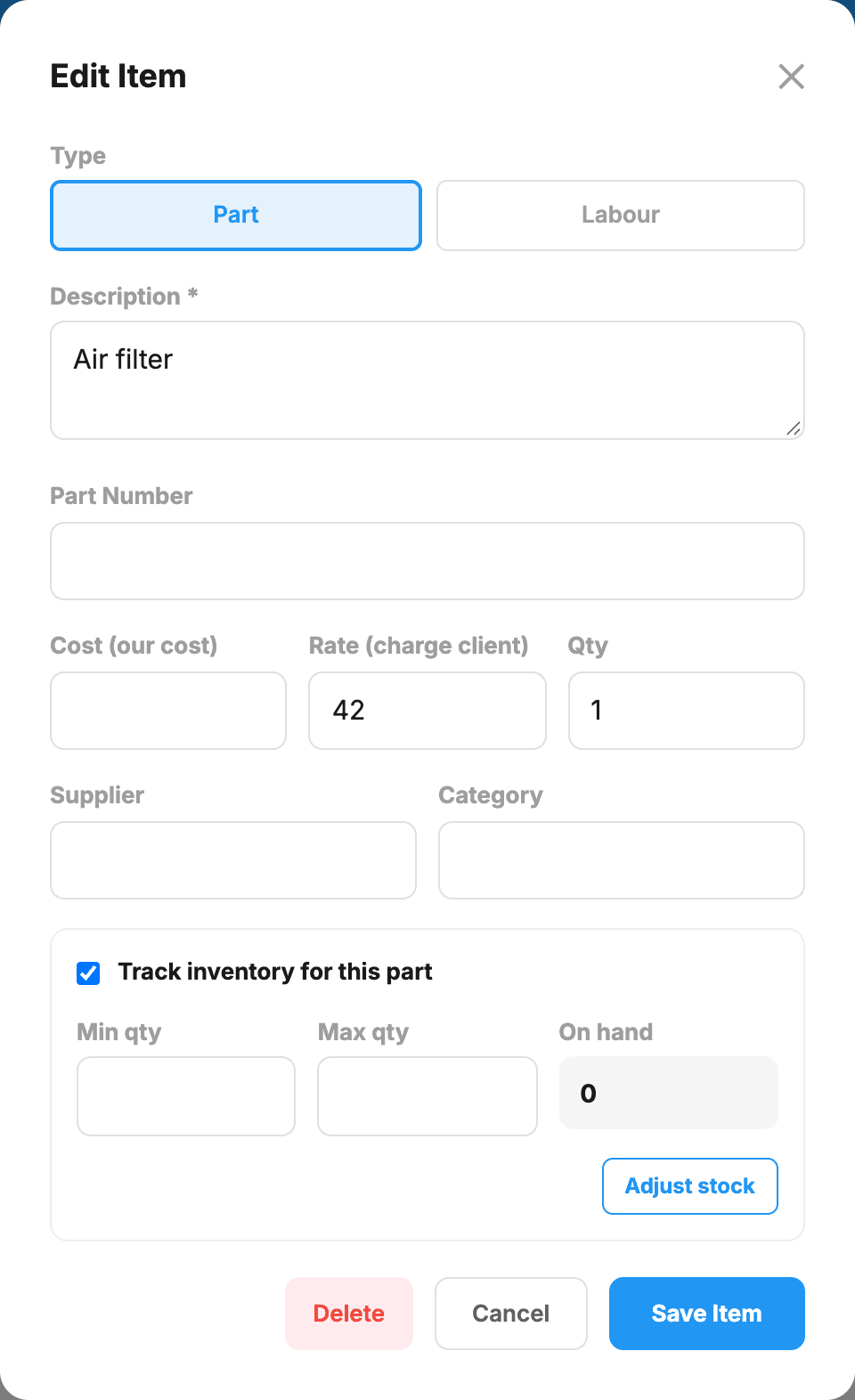
Set up your parts catalogue
- Go to Stock in the sidebar, then the Catalogue tab.
- Add items as you go (you don’t need to pre-seed everything — most workshops add items the first time they invoice a part).
- For each item: a description, and if you like the part number, your cost, what you charge, the supplier and a category.
- Tick Track inventory for this part on the parts you want counted. It starts off, so cheap consumables (rags, fluids) stay out of the ledger unless you choose otherwise.
Opening balance
If you want stock numbers to start accurate from day one rather than from zero, set an opening balance:
- Open the item (save it first if it’s new).
- Click Adjust stock.
- Choose Receive, and enter the quantity you have now and what each one cost you.
From that point, every invoice line you pick from the catalogue for the item takes it off stock, and every delivery you receive puts it back on.
Auto-deduct on invoice
When you save an invoice line you picked from your catalogue for a tracked part, MechOS takes it off stock, and puts it back if you remove the line. Parts typed in by hand, or carried over from an estimate, aren’t linked to the catalogue and don’t come off stock. Run the Inventory report any time to see current stock on hand per item.
Getting stock in
- Purchase orders — order from a supplier under Stock → Purchase Orders and receive the delivery against it. Receiving is what moves stock in; part deliveries are handled properly. See Raise a purchase order and receive stock.
- Adjust stock → Receive — for something bought without an order: the quantity and what each one cost.
Supplier invoices you email in land in Expenses, so the cost is recorded (see Email supplier invoices straight into Expenses), but they don’t change stock on their own.
Stock adjustments
One-off corrections — a breakage, a lost item, a return — use the Adjust stock button on the item record. Choose Adjust, enter the change (a minus number takes stock off) and a note saying why; each one is kept as a stock movement with its note. Stocktake in the same box sets one item to the number you counted.
Counting a whole shelf is a different job. Use Stock → Stocktake, which counts against a snapshot and applies the whole count in one go — see Run a stocktake.