Subscription, data export and account deletion
Everything to do with your MechOS account — subscription, card on file, exporting your data, closing the workshop — lives under Settings.
Update your card or change billing details
- Go to Settings → Usage & Billing. Only the owner can change billing.
- Click Update card — you’ll complete a quick secure checkout (a $1 verification that’s refunded automatically) with the new card.
- Use Cancel subscription or Resume subscription to stop or restart renewals. Your past charges are listed under Billing history on the same screen.
Your card is tokenised by our payment provider (Fat Zebra, via VenueSmart), so MechOS never stores your card number. Clicking Cancel subscription takes effect at the end of the current billing period; you keep access until then.
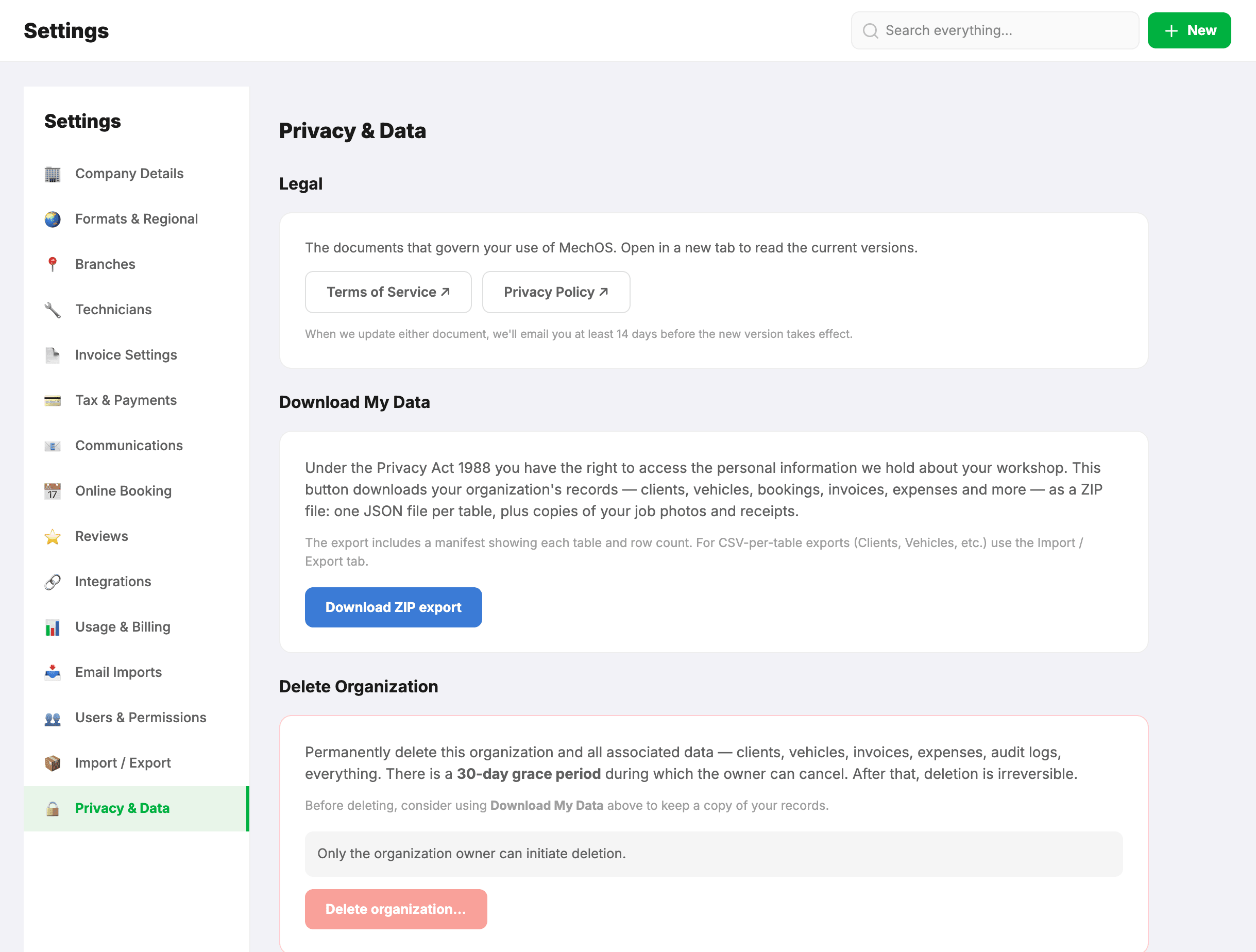
Download all your data
- Settings → Privacy & Data.
- Under Download My Data, click Download ZIP export.
- A ZIP file downloads with one JSON file per table (clients, vehicles, invoices and their lines, payments, bookings, the audit trail and more), plus copies of your job photos and receipts.
Useful for: switching to another system, accountant requests, your own peace of mind. Generate one before you delete your account so you have a copy.
Delete your workshop
If you’re closing the business or switching to another system, you can fully delete your MechOS data.
- Owner only — admins can’t do this.
- Settings → Privacy & Data → Delete Organization, and click Delete organization…
- Type your workshop’s slug to confirm. (We make you type it on purpose — fat-finger guard.)
- Click Schedule deletion.
What happens after you click delete
- Immediately: your workshop is hidden. All staff lose access. Your MechOS subscription is scheduled to end at the close of the current billing period — no further charges. Your customers can still open the invoices and estimates you sent them, but can’t pay or approve them online, and your booking page stops taking requests.
- For 30 days: you can change your mind. Sign in and you’ll see the deletion with a Cancel deletion button. Cancelling gives everyone their access back straight away.
- After 30 days: MechOS deletes it permanently: your records, photos and files. Backup copies go as well, the last of them within a week. Your MechOS subscription is fully cancelled, and if this was the only workshop tied to your login, your login itself is deleted.
Transfer ownership instead?
If you’re selling the workshop rather than closing it, email support@getmechos.com.au. We’ll handle the ownership-transfer manually so both parties consent on the record.